 English
 العربية
 Français
 Deutsch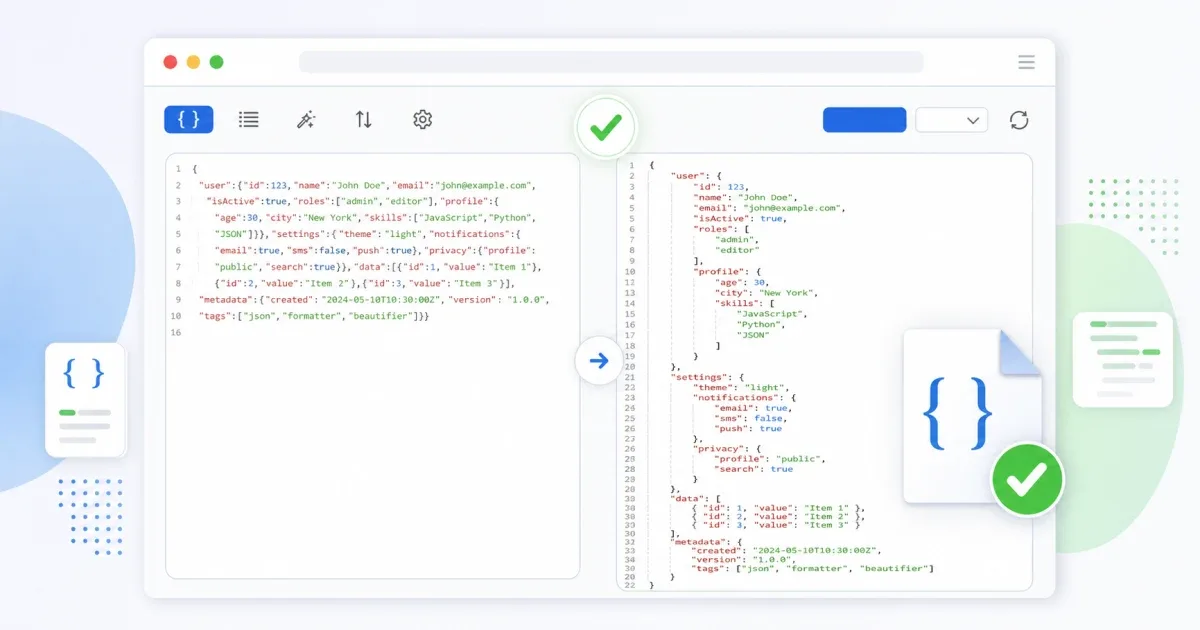
Why messy JSON slows debugging
JSON often arrives in the least friendly shape: one long line from an API response, a copied webhook payload, an app config, a browser storage value, or an export from another tool. The data may be valid, but it is hard to read, review, or explain.
Formatting JSON before you debug it saves time. Indentation and line breaks show objects, arrays, nested levels, keys, strings, numbers, booleans, and null values clearly.
Use JSON Formatter when you need to format, validate, beautify, or minify JSON without installing an app or sending the text through a longer workflow.
Start by validating the structure
Before you think about the meaning of the data, check whether the JSON is valid. A formatter can only create clean output when the input is real JSON.
Common validation errors include:
- A missing comma between fields.
- A trailing comma after the last item.
- A string without a closing quote.
- A bracket or brace copied incorrectly.
- Single quotes where JSON requires double quotes.
- Comments copied from JavaScript into a JSON-only file.
Paste the text into the formatter and run format. If the JSON is valid, you get readable output. If it is broken, the error message helps you locate the issue before you waste time reviewing the wrong part of the payload.
Beautify for reading
Beautified JSON is the version you want while debugging, documenting, teaching, or sending a sample to a teammate. It uses indentation and syntax highlighting so the structure becomes visible.
This is helpful when you need to inspect:
- API responses.
- Webhook examples.
- Translation files.
- Feature flags.
- Browser local storage values.
- App settings.
- Sample payloads for support tickets.
Readable JSON also makes non-developer conversations easier. A support person or product manager can point to a field without reading a compressed one-line block.
Minify only when the final version is ready
Minified JSON is useful when you need a compact version for storage, transfer, or a field that expects a single-line payload. It removes unnecessary spaces and line breaks while keeping the same data.
Do not minify too early. If you are still editing, comparing, or checking the payload, keep the beautified version. Minify only when the structure is valid and the data is final.
When you need to compare before and after versions, use Diff Checker after formatting both copies. Comparing formatted JSON is much easier than comparing two long minified lines.
Clean JSON before generating code
JSON formatting is often the first step before model generation. If you want to create TypeScript interfaces, Dart models, Kotlin data classes, or Swift structs, start with valid JSON.
After the payload is clean, use JSON to Code to generate model code from the sample. This gives the generator a better structure to infer fields, nested objects, arrays, and value types.
Still review the result. A single JSON sample may not show optional fields, nullable values, or every shape an API can return.
Privacy and browser workflow
The JSON Formatter tool runs in your browser for the formatting task. That keeps the workflow fast and avoids installing a desktop app.
Even so, check what is inside the JSON before pasting it anywhere else. API keys, access tokens, private emails, user records, payment data, and internal IDs should be replaced with safe placeholders before you share samples in documentation, bug reports, chat messages, or AI prompts.
Formatting helps you inspect data. It does not decide whether the data is safe to share.
A practical browser workflow
Use this simple flow when a JSON block looks messy:
- Paste the JSON into JSON Formatter.
- Format it and check whether validation passes.
- Fix syntax errors first.
- Review nested objects and arrays.
- Beautify while debugging or documenting.
- Minify only when you need the compact final version.
- Compare versions with Diff Checker when changes matter.
This keeps the work focused: validate first, understand second, transform last.
Final checklist
Before you use the cleaned JSON:
- Confirm validation passes.
- Check arrays and nested objects.
- Remove secrets and private data.
- Keep the beautified copy for review.
- Minify only for final delivery.
- Use clean JSON before generating model code.
For quick browser-based cleanup, open JSON Formatter, paste the payload, and format it before you debug, share, or transform it.