 English
 العربية
 Français
 Deutsch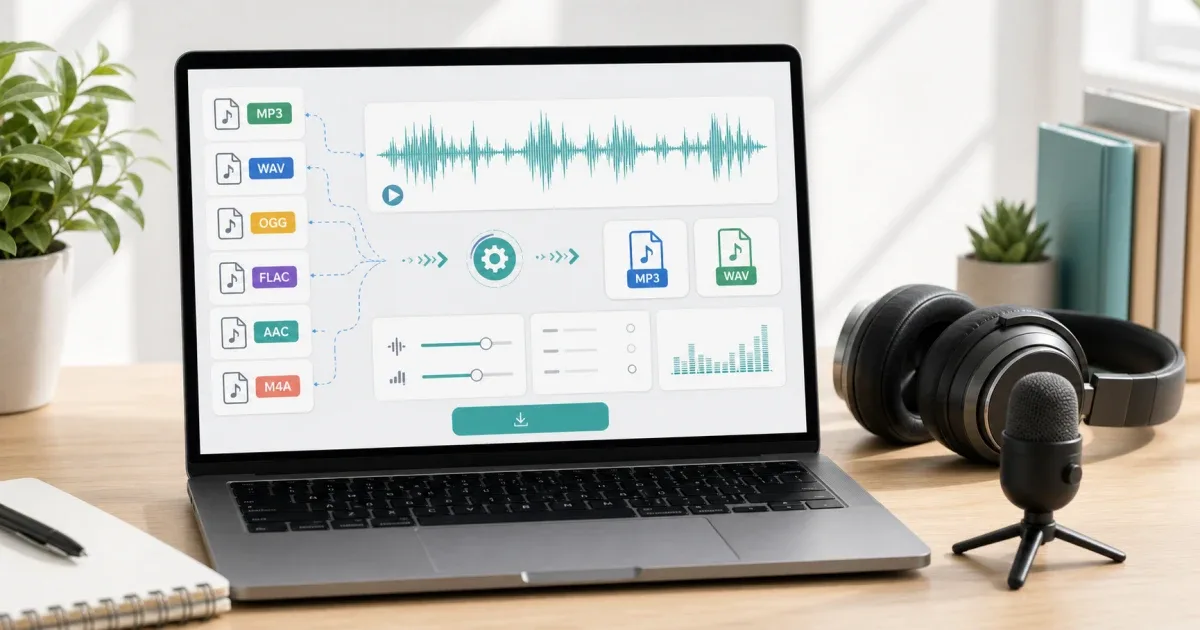
Why convert audio files?
Audio formats matter more than most people expect. A voice recording may be too large to send. A WAV file may not upload to a website. A podcast clip may need MP3 for sharing. A music or lecture file may need a smaller format before it can be attached to an email.
A browser audio converter is useful when the job is simple: choose the file, select MP3 or WAV, adjust quality if needed, then download the converted result. The Audio Converter supports common input formats such as MP3, WAV, OGG, FLAC, AAC, and M4A, then exports to MP3 or WAV.
MP3 or WAV?
Choose MP3 when you need a smaller file for sharing, uploading, messaging, or publishing online. MP3 is widely supported and usually good enough for speech, lessons, interviews, and most casual audio.
Choose WAV when quality and editing flexibility matter more than file size. WAV is often larger, but it is useful for editing, archiving, or moving audio between production tools.
The right choice depends on the next step. If the file will be sent to someone, MP3 is usually practical. If it will be edited again, WAV may be safer.
Bitrate, sample rate, and channels
Bitrate controls how much data is used for the audio. Higher bitrate can improve quality, but the file becomes larger. For speech, you usually do not need very high settings. For music, higher settings may be worth it.
Sample rate controls how often the audio is sampled. Standard rates are usually fine unless a specific platform asks for something else.
Channels decide whether the result is mono or stereo. Mono is often enough for voice notes and spoken lessons. Stereo is better for music or recordings where left and right sound matter.
A practical workflow
First, decide what the converted file is for. A WhatsApp voice note, a website upload, a podcast draft, and a classroom recording do not need the same settings.
Next, open Audio Converter, add the file, choose MP3 or WAV, and keep settings moderate unless you know the receiving platform requires something specific.
If the file is too long, trim it with Audio Cutter before sharing. Shorter audio is easier to send and easier for people to listen to.
Before final delivery, play the converted file once. Listen for missing audio, sudden silence, or unexpected quality loss. If the file is important, you can also check basic details with File Metadata Viewer.
Privacy and local processing
The tool processes conversion in the browser using FFmpeg WebAssembly. That means the work happens locally on your device instead of uploading the file to a server.
This is helpful for private recordings, school content, interviews, or business clips. Still, keep your original file until you confirm the converted version works.
Common mistakes
Do not convert the same file many times through different formats. Each lossy conversion can reduce quality.
Do not choose the largest settings automatically. Large files are harder to upload and may not sound better for speech.
Do not delete the original until the converted file has been tested.
Do not send a long recording when a short trimmed clip would be clearer.
Final recommendation
Use Audio Converter when you need to convert audio files online to MP3 or WAV without installing software. Use Audio Cutter when the recording needs trimming, then check the final file before sharing.