 English
 العربية
 Français
 Deutsch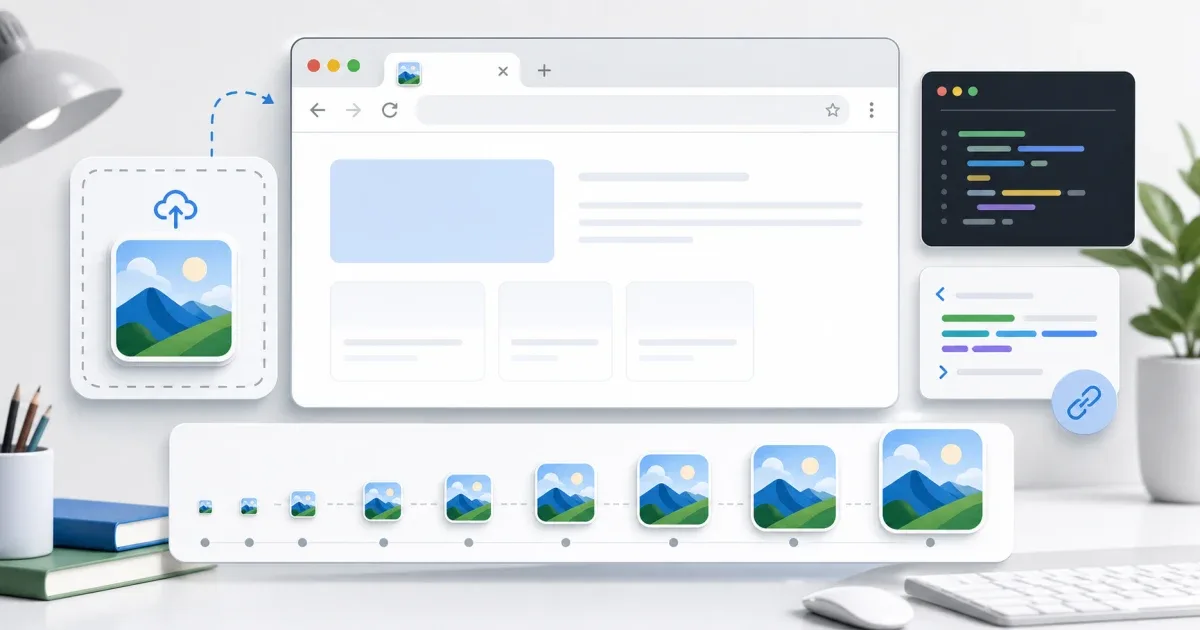
Why your website needs a favicon
A favicon is the small icon that appears in a browser tab, bookmark, search result preview, and sometimes on a phone home screen. It is small, but it helps people recognize your site quickly when many tabs are open.
The easiest way to create one is to start with a clean image and use a Favicon Generator. The tool can turn one source image into the common icon sizes a modern website needs.
Start with the right image
Use a square image if possible. A logo mark, symbol, letter, or simple app icon works better than a detailed full logo. Favicons are tiny at 16×16 or 32×32 pixels, so fine details disappear quickly.
Before generating the favicon, check these points:
- The design is readable as a small square.
- The background has enough contrast.
- The icon does not rely on tiny words.
- The main shape sits in the center.
- The image is not blurry before resizing.
If the source image needs cropping or cleanup, prepare it first with the Image Editor, then use the final square image for the favicon.
Generate all standard sizes
Open the Favicon Generator, upload the source image, and generate the icon set. A good favicon package usually includes several sizes because browsers and devices use different files.
Small icons work in browser tabs. Larger icons are useful for shortcuts, app-like installs, and high-resolution displays. Generating all sizes at once prevents the common mistake of using one small icon everywhere.
Add the HTML code
After generating the icons, copy the provided HTML link code into the head of your website. This tells browsers which icon files to use. If your site has a template or layout file, add the code there so every page can use the same favicon.
After publishing, open the site in a browser and refresh. Sometimes browsers cache favicons strongly. If the old icon still appears, try a hard refresh or test in a private window.
Common favicon mistakes
The most common mistake is using a wide logo. It may look good on a header, but it becomes unreadable as a tiny tab icon. Use a simplified mark instead.
Another mistake is forgetting contrast. A dark symbol on a dark transparent background may disappear in dark browser themes. Test the icon against both light and dark surfaces.
Also avoid changing favicons too often. The icon becomes part of your brand memory. Update it when the visual identity changes, not for every small design experiment.
Final checklist
Before you finish, make sure the favicon is clear at small sizes, the generated files are uploaded to the correct place, and the HTML link code appears on the site.
For a fast workflow, prepare a square image, open the free Favicon Generator, generate the standard sizes, and add the HTML code to your website.