 English
 العربية
 Français
 Deutsch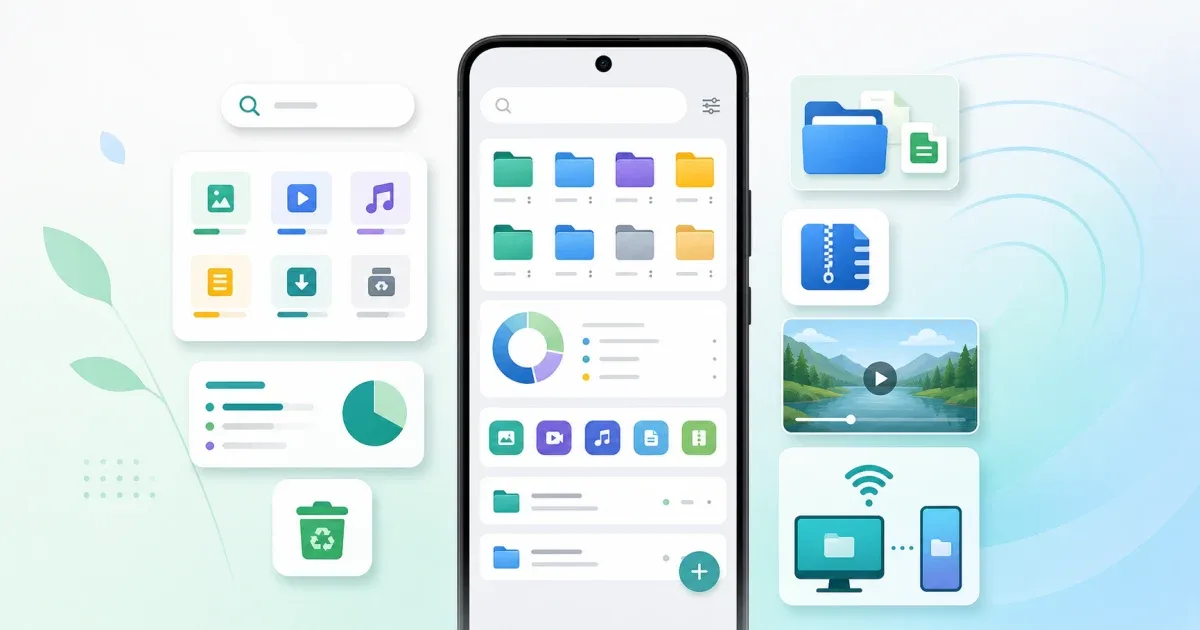
Start with a simple file routine
Most Android storage problems do not happen in one day. They build up through downloads, screenshots, videos, shared documents, duplicate files, and old archives. A good file manager helps you build a routine instead of reacting only when storage is full.
Glazr File Manager Pro is useful for that routine because it combines browsing, categories, search, storage cleanup, archive tools, media viewers, and Wi-Fi transfers in one app.
Use categories before folders
Folders are useful, but they are not always the fastest starting point. When you want to clean or review files, begin with categories: images, videos, audio, documents, downloads, and apps. This shows what type of content is taking space.
After that, open the actual folders. Downloads may contain old PDFs, installers, exported ZIP files, and images you no longer need. Camera folders may contain videos that are much larger than photos.
Search before scrolling
If you know part of a file name, search first. Scrolling through many folders wastes time and increases the chance of deleting the wrong thing. Search is especially useful for invoices, school files, downloaded forms, exported archives, and old media.
Use clear filenames when you rename important files. A name like passport-scan-2026.pdf is easier to find later than IMG_4821.pdf.
Clean storage carefully
Storage cleanup should be deliberate. Start with large files, old downloads, and duplicates. Do not delete entire folders just because they look unfamiliar. Some apps store important data in their own folders.
Before deleting, preview the file. Glazr includes viewers for images, video, audio, PDF, and Office files, so you can confirm what a file contains before removing or moving it.
If you only need to check whether a file is too large before uploading, you can also use File Size Checker in the browser.
Use ZIP archives for groups of files
When you need to send several related files, put them in one folder or create a ZIP archive. This is cleaner than sending ten separate attachments. Glazr can create ZIP files and extract common archive formats such as ZIP, RAR, 7Z, TAR, and GZ.
Archives are useful for school work, receipts, project folders, exported photos, and backups. Give the archive a clear name and keep the original files until you know the archive opens correctly.
Move files without a cable
A good Android file workflow should not depend on finding a cable every time. Glazr supports Wi-Fi transfer options, including access from a computer browser and FTP workflows on the same local network.
Use this when moving photos, videos, PDFs, or archives between phone and computer. Keep both devices on the same Wi-Fi network, transfer the files, then turn off the server when finished.
Final checklist
For a cleaner Android file system, repeat this routine:
- Review categories weekly.
- Search before scrolling.
- Rename important files clearly.
- Preview before deleting.
- Archive related files together.
- Transfer large files to a computer when needed.
Managing Android files like a pro is mostly about habits. Use Glazr File Manager Pro to keep those habits in one place.