 English
 العربية
 Français
 Deutsch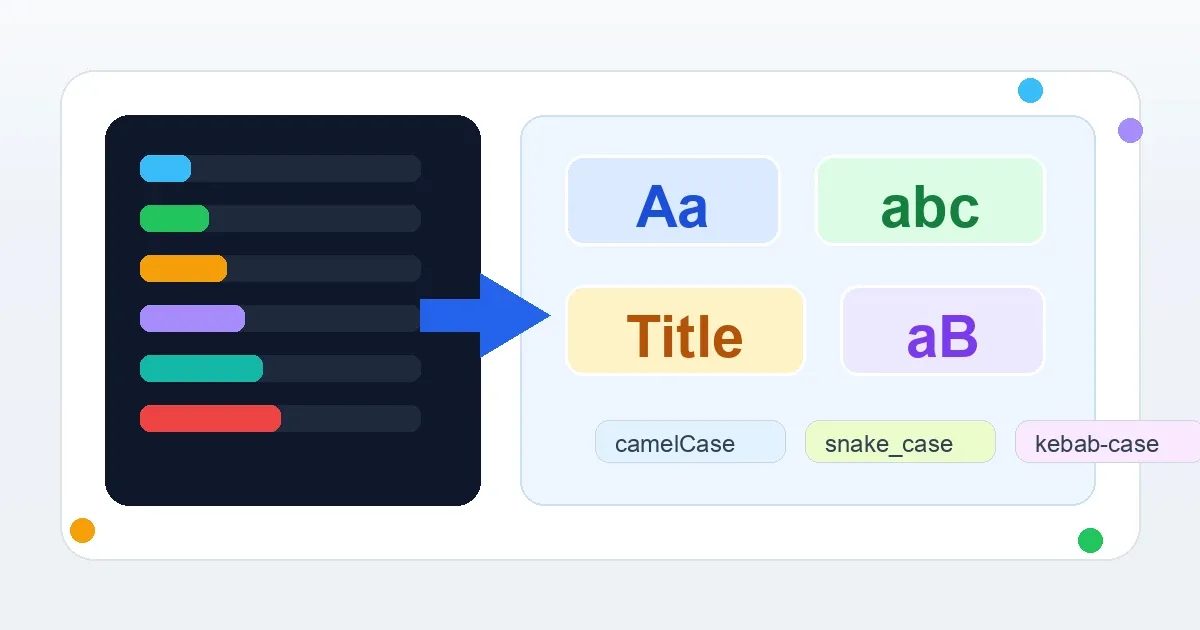
Why text case matters
Text case looks like a small detail until it slows you down. A title may arrive in all caps. A filename may need kebab-case. A spreadsheet label may need Title Case. A developer may need camelCase or snake_case. A social post may need quick cleanup before publishing.
Changing every letter by hand is slow and easy to get wrong. The free Text Case Converter lets you paste text once, choose a case mode, and copy the converted result from the browser.
This is useful for writers, students, marketers, support teams, developers, teachers, and anyone who prepares text for forms, websites, documents, filenames, or code-like labels.
Common text case problems
One common problem is pasted text that arrives in uppercase. It may be readable in a headline, but it looks aggressive in a paragraph, email, or form field.
Another problem is inconsistent capitalization. A list of product names, headings, tags, or file titles may use different styles. Converting the text to one clear style makes it easier to scan.
For technical work, naming style matters too. A label such as user profile image may need to become userProfileImage, user_profile_image, or user-profile-image depending on where it will be used.
The goal is not only appearance. Consistent case helps text look intentional and reduces small manual errors.
What the tool can convert
The IGY Apps Text Case Converter supports 12 modes:
- UPPERCASE
- lowercase
- Title Case
- Sentence case
- camelCase
- PascalCase
- snake_case
- kebab-case
- CONSTANT_CASE
- dot.case
- tOGGLE cASE
- aLtErNaTiNg case
That covers everyday writing formats and common naming conventions used in files, URLs, variables, labels, and content drafts.
How to use Text Case Converter
- Open Text Case Converter.
- Paste or type your text into the input box.
- Choose the case mode you need.
- Review the converted output.
- Copy the final text.
The output updates as you type or switch modes, so you can test several styles quickly before choosing the final one.
Which case should you choose?
Use UPPERCASE for short labels, warnings, or acronyms. Avoid it for long paragraphs because it is harder to read.
Use lowercase when you need a simple normalized style, especially for tags, rough drafts, or data cleanup.
Use Title Case for headings, article titles, product names, and presentation slide titles.
Use Sentence case for natural paragraphs, support replies, descriptions, and normal messages.
Use camelCase or PascalCase when preparing code-style names. Use snake_case, kebab-case, or dot.case for filenames, slugs, keys, and technical labels depending on your project rules.
A simple publishing workflow
If you are preparing content for a blog post, start by writing naturally. Then use Word Counter to check length, character count, and estimated reading time.
After that, use Text Case Converter for headings, labels, file names, or metadata fields that need a consistent style. If your draft includes long lists of lines, Text Tools can help remove duplicates or sort the list before you finalize it.
This workflow keeps the creative part separate from the cleanup part. Write first, then format and verify.
Privacy and browser-based conversion
The conversion happens locally in your browser. Your text does not need to be sent to a server for simple case changes.
That is useful for draft emails, internal notes, file labels, client text snippets, and any content you want to clean quickly without installing an app.
Final tip
Case conversion is simple, but it saves time when you do it often. It is especially helpful when you need consistency across headings, filenames, tags, spreadsheets, or technical names.
Try the free Text Case Converter to convert text between uppercase, lowercase, Title Case, camelCase, snake_case, kebab-case, and more.