 English
 العربية
 Français
 Deutsch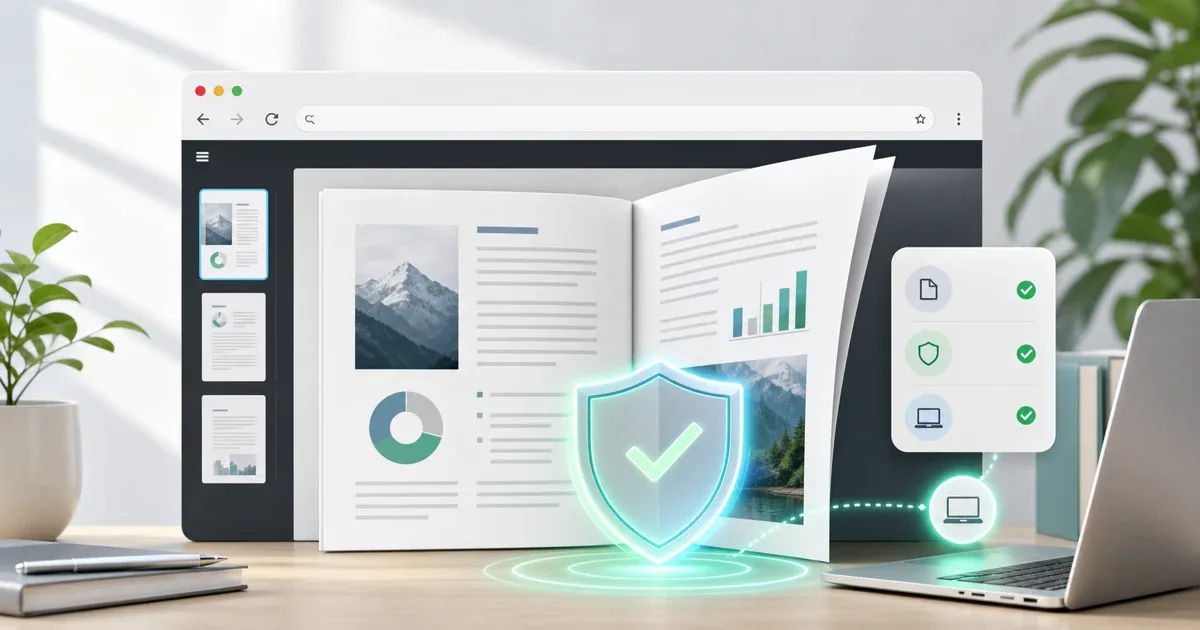
The short answer
Online PDF tools can be safe when you understand where the file is processed. The most important question is not simply "is it online?" The better question is: does the tool upload my document to a server, or does the work happen inside my browser?
The PDF tools on IGY Apps, including PDF Editor, Merge PDF, Split PDF, Images to PDF, and PDF to Image, are browser-based workflows. For these PDF tasks, the file processing runs in your browser, so your PDF does not need to be uploaded to IGY Apps to complete the job.
That does not mean every online PDF tool is automatically safe. It means you should check the processing model, the file type, the device you are using, and the sensitivity of the document before you start.
Browser-based tools vs upload-based tools
A browser-based PDF tool opens the document with JavaScript in your own browser. The page provides the interface and code, then your device performs the editing, merging, splitting, or conversion work. This is usually the better choice for quick private tasks because the document can stay on your computer.
An upload-based PDF tool sends the file to a remote server for processing. That can be useful for heavy jobs, OCR, compression, advanced repair, or formats that need server software. But it also means you are trusting the service with a copy of the document, at least temporarily.
Neither model is always right or always wrong. The safe choice depends on the document. A public brochure is different from a signed contract, tax form, medical report, school ID document, or internal company file.
How IGY Apps handles common PDF tasks
Use Merge PDF when you need to combine several PDFs into one file. The files are loaded and reordered in the browser, then downloaded as a new PDF.
Use Split PDF when you need to extract a page range, create smaller chapter files, or remove pages before sharing. This is useful when only part of a document should be sent.
Use PDF Editor for light annotations, highlights, drawings, text labels, and quick review. It is best for visible markup, not for rewriting the original source document.
Use Images to PDF when photos, receipts, scans, or image pages need to become one PDF. The images can be ordered and converted inside the browser.
Use PDF to Image when you need to export PDF pages as PNG or JPEG images for sharing, previews, or reuse.
A quick safety checklist before using any PDF tool
First, check the URL. Use the real site address, make sure the page uses HTTPS, and avoid copied links from unknown messages.
Second, check the tool's promise. If it says "no upload" or "runs in your browser", it should not need a file upload progress step to a server for the core job. If the page clearly uploads the file, treat it as an upload-based service.
Third, check the document. If it contains passwords, bank data, signatures, legal records, medical details, private student data, or internal company information, choose the most private workflow available and avoid public computers.
Fourth, check the output before sending it. Open the downloaded PDF, confirm page order, visible edits, file size, and filename.
Fifth, clean up after yourself. Delete temporary downloads from shared computers and avoid leaving sensitive files in the downloads folder.
Common mistakes to avoid
Do not upload a sensitive PDF to a random site just because it ranks high in search. A familiar workflow is not the same as a trustworthy workflow.
Do not assume that deleting a browser tab deletes downloaded files. If you created a new PDF, it may still be in your downloads folder.
Do not send the full document if only a few pages are needed. Split the PDF first and share only the relevant pages.
Do not add private comments or hidden notes to a file that will be forwarded. Open the final PDF and review what is visible before sharing it.
Do not work with sensitive files on a shared device unless you can remove local copies afterward.
When a server-side tool may still make sense
Some PDF jobs are hard to run entirely in a browser. OCR for scanned text, aggressive compression, damaged-file repair, password recovery, and very large batch jobs may need server-side processing.
If you use a server-side tool, read the privacy notes, avoid unnecessary sensitive data, and keep a copy of the original file. For highly confidential documents, use approved workplace software or an offline app instead of an unknown web service.
Final recommendation
For everyday tasks like merging, splitting, annotating, converting photos to PDF, or exporting PDF pages as images, start with a browser-based PDF tool. It keeps the workflow simple and avoids unnecessary file uploads.
For sensitive files, slow down for one minute: confirm the tool, use the right device, share only the pages needed, and inspect the final download before sending it.