English
 العربية
 Français
 Deutsch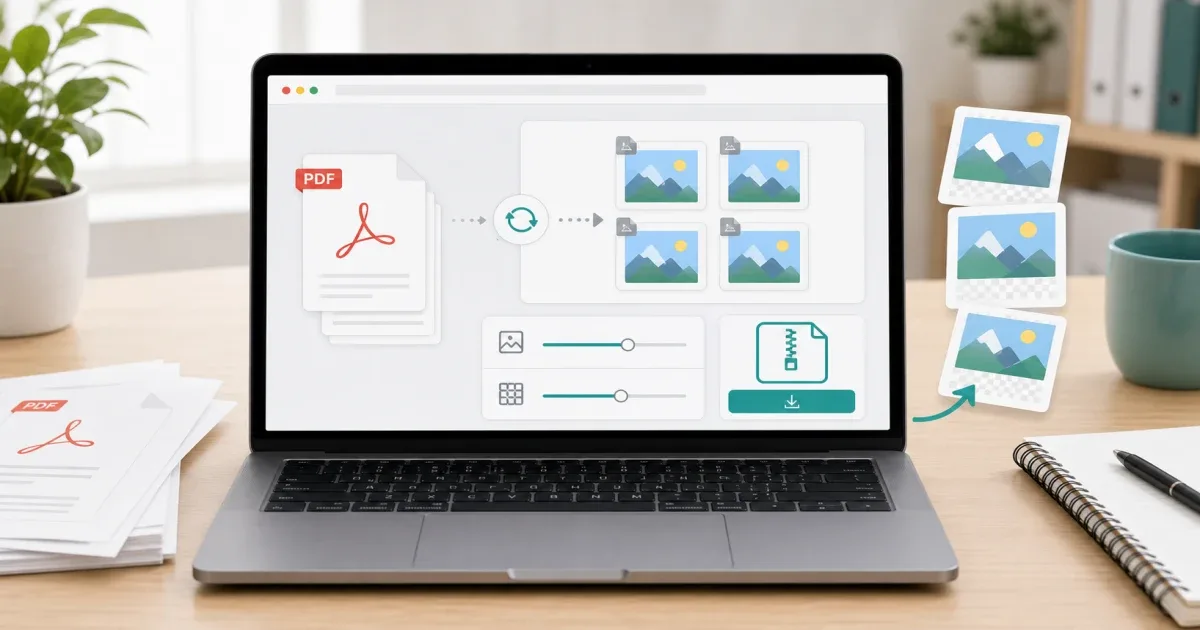
Why convert a PDF to images?
PDF is great for preserving a document, but it is not always the easiest format to reuse. Sometimes you need one page as a picture for a presentation, a lesson, a website, a chat message, or a social media post. In that case, converting PDF pages to PNG or JPEG is faster than taking screenshots one by one.
The PDF to Image tool converts pages in the browser. You choose PNG or JPEG, select the pages you need, set the resolution scale, and download individual images or a ZIP archive.
PNG or JPEG?
Choose PNG when the PDF page contains text, screenshots, diagrams, icons, or sharp lines. PNG keeps edges clean, which is useful for documents and educational material.
Choose JPEG when the page is mostly a photo or when you want a smaller image file. JPEG is practical for sharing and quick previews, but it may soften text.
If the image will be used on a website, test both formats. The best choice depends on whether readability or file size matters more.
When to convert only selected pages
You rarely need every page from a large PDF. If you only need page 2 or a few slides from a document, select those pages before downloading. This keeps the ZIP smaller and avoids extra cleanup.
If the PDF needs preparation first, use Split PDF to extract a smaller document, then convert it to images. If you later need the reverse workflow, use Images to PDF to combine images into one PDF again.
Practical workflow
Start with the final use. A classroom handout, product page, and chat preview do not need the same resolution. Higher resolution gives clearer images but larger files.
Open PDF to Image, add the file, choose PNG or JPEG, then select only the pages you actually need. Use a higher scale for printing or detailed reading, and a lower scale for quick sharing.
After downloading, open one image before sending it. Check that the text is readable, the page is not cropped, and the file size is practical.
Common mistakes
Do not convert every page if you only need one. Large ZIP files are harder to send.
Do not use JPEG for small text if clarity is important. PNG is usually safer for document pages.
Do not forget privacy. Remove pages with personal data before converting or sharing.
Final recommendation
Use PDF to Image when you need clean PNG or JPEG exports from a PDF without installing software. Convert only the pages you need, choose the format based on content, and check one output image before sharing.