 English
 العربية
 Français
 Deutsch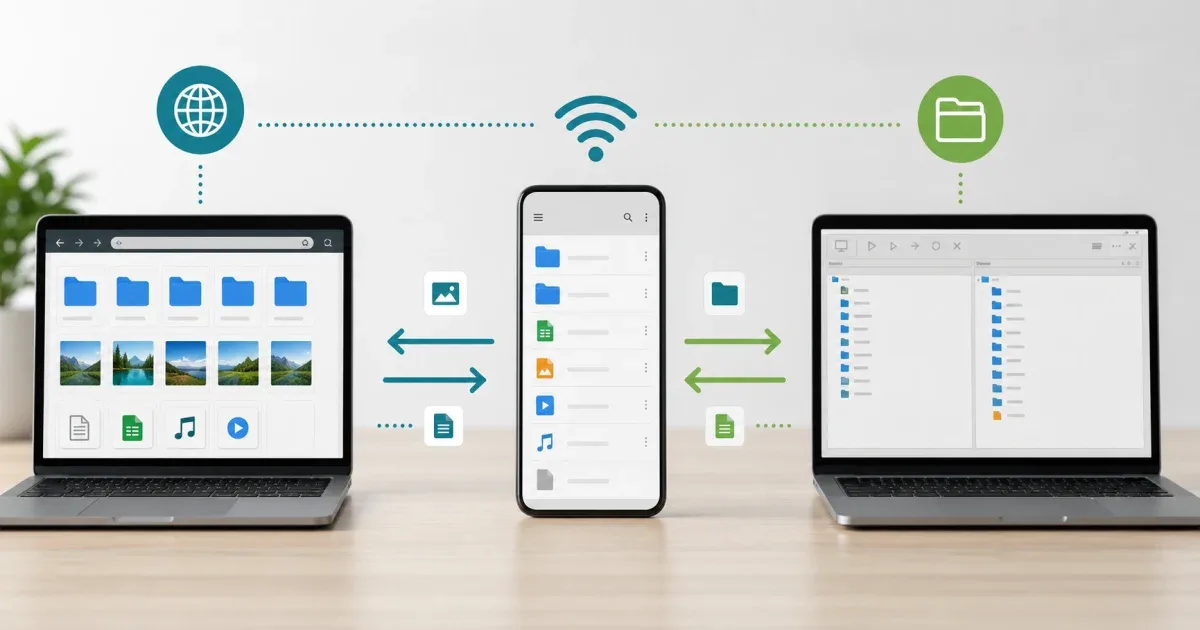
Why the transfer method matters
When you move files between a phone and a computer, the question is not only "Can I send this file?" The better question is "Which transfer method fits this job?" A single PDF, a folder of photos, a long video, and a group of work documents all need slightly different handling.
Two common local options are HTTP and FTP. Both can work over the same trusted Wi-Fi network. Both can avoid a cable. Both can keep files local instead of forcing a cloud upload first. But they feel different in daily use.
Glazr File Manager Pro supports the broader PC transfer workflow with HTTP and FTP server options. That makes it a useful example for understanding when a browser-based transfer is enough and when a dedicated FTP workflow is better.
What HTTP transfer is good at
HTTP transfer is the simpler option for many people. The phone starts a local web server, and the computer opens an address in a browser. You do not need a special desktop program. If the app provides a QR code or local URL, the setup can be quick.
This method is ideal when you want to download a few files, upload a small set, or help someone who does not know FTP clients. A browser interface feels familiar. It is also easier to explain: open the link, choose the file, download or upload.
Use HTTP when the job is short and clear. For example, moving one PDF to a laptop, downloading a few vacation photos, or uploading a document from the computer to the phone can be faster through a browser than setting up a full FTP client.
Where HTTP becomes limiting
HTTP can feel less comfortable when the task becomes file management rather than file handoff. If you need to browse many folders, move through nested directories, repeat uploads and downloads, or compare local and phone folders side by side, the browser can become clumsy.
Large batches also need more attention. Some browser transfers work well, but others are easier to interrupt by closing a tab, refreshing a page, or losing track of what already downloaded. Before moving a large collection, use File Size Checker to understand the size and decide whether the job deserves a more structured workflow.
HTTP is best treated as the quick path, not always the most organized path.
What FTP transfer is good at
FTP is stronger when the computer should manage the phone files like folders on a remote location. The phone starts an FTP server, and the computer connects with an FTP client. Once connected, you can browse folders, upload and download repeatedly, and handle larger groups with more control.
This is useful for photo backups, video transfers, project folders, music libraries, archives, and work documents. It also helps when you want to move files in both directions during the same session: download phone files to the computer, then upload edited files back to the phone.
Glazr File Manager Pro's FTP server support is designed for this kind of PC transfer. The app can provide the server details, while the computer uses an FTP client to connect on the same local network.
Where FTP is less convenient
FTP usually needs more setup than HTTP. You need an FTP client on the computer, and you must enter the address, port, username, and password correctly. For a one-file transfer, that may be more work than opening a browser link.
FTP also deserves good security habits. Use it on trusted networks only, stop the server when you finish, and use credentials if the app provides them. Local transfer is still a network service, so it should not stay open longer than necessary.
If you are helping a non-technical user move one file, HTTP is often easier. If you are managing several folders yourself, FTP is usually worth the setup.
Quick decision guide
Choose HTTP when:
- You only need one or a few files.
- You want to use a normal web browser.
- The other person needs the easiest possible workflow.
- You do not need repeated folder browsing.
Choose FTP when:
- You need to move many files or folders.
- You want a two-panel desktop file workflow.
- You plan to upload and download in the same session.
- You care about retrying batches in a more organized way.
The choice is not about one method being universally better. It is about matching the method to the task.
How to prepare files before either method
Before starting HTTP or FTP, organize the source folder on the phone. Rename unclear files, remove items that should not be sent, and group related documents together. If you are sending many small files, consider using an archive. If you are sending a large video, move it separately so it is easier to retry if the connection fails.
Open important files before transfer. A PDF should open, a video should play, and a ZIP archive should be readable. After transfer, check the received copy. For important files, Checksum Generator can help confirm that two copies match, and File Metadata Viewer can help review basic file information before sharing.
Good preparation matters more than the protocol. A clean file set transfers better through either path.
Best practical approach with Glazr
Use Glazr File Manager Pro as the starting point for the phone side. If the job is simple, start with HTTP transfer and use the computer browser. If the job grows into repeated folder work, switch to FTP and use a dedicated FTP client.
On Android, background server support can help during longer HTTP or FTP transfers, but you should still keep the phone on the same Wi-Fi and avoid changing networks mid-transfer. On any platform, stop the transfer server after the job is done.
For everyday use, the practical answer is simple: HTTP is best for quick browser-based handoff, while FTP is better for organized file management between phone and computer.