 English
 العربية
 Français
 Deutsch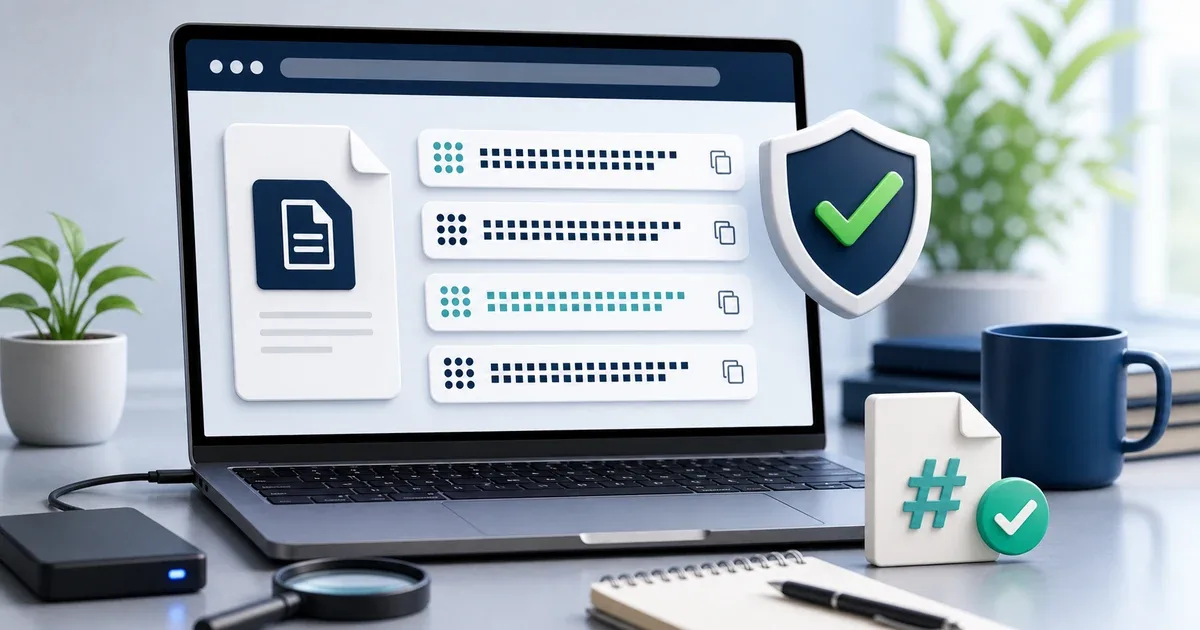
Why file integrity matters
A file can look normal and still be the wrong file. A download may stop early, an archive may be copied incorrectly, or two files with the same name may come from different versions. For small everyday files this may only be annoying. For software installers, backups, invoices, archives, or client documents, the difference matters.
A checksum gives you a short fingerprint of a file. If the file changes, even by one byte, the checksum changes too. That makes checksums useful when you want to confirm that a downloaded file matches the original version or that a file copied to another device arrived intact.
The free Checksum Generator on IGY Apps calculates common hashes directly in your browser. You choose a file, wait for the result, then copy the value you need or compare it with a known checksum.
What MD5, SHA-1, SHA-256, and SHA-512 mean
A checksum tool may show several algorithms at once. They all create a fingerprint, but they are not equal for every use.
MD5 is short and still appears in many older download pages. It can be useful for a quick file comparison, but it should not be your first choice for security-sensitive verification.
SHA-1 is also older. You may still see it in existing systems, but modern verification usually prefers SHA-256 or stronger.
SHA-256 is the practical default for important downloads. If a website gives you a SHA-256 value for a file, compare your result with that value.
SHA-512 is longer and stronger. It is useful when a service publishes that algorithm or when you want a stronger hash for archiving and auditing.
The IGY Apps tool calculates MD5, SHA-1, SHA-256, and SHA-512 together, so you do not need to run separate tools for each algorithm.
When should you verify a file?
You do not need a checksum for every photo or note. It is most helpful when the file is important or when the source provides an official hash.
Use checksum verification when you download software, copy a backup, move a large archive, share a project file with a client, receive a document that must not change, or compare two files that appear identical.
It is also useful after moving files between devices. For example, if you transfer a ZIP file from a phone to a computer, you can generate a checksum before and after the transfer. If both values match, the copied file is identical.
How to use the online Checksum Generator
- Open Checksum Generator.
- Drag a file into the upload area or click to browse.
- Wait while the browser calculates MD5, SHA-1, SHA-256, and SHA-512.
- Copy the hash you need.
- If you have a known checksum, paste it into the verification field and check whether it matches.
The tool also shows progress while the file is being processed. This is useful for large files because hash generation may take a few seconds.
A practical download verification workflow
Start by downloading the file from the official source. If the source publishes a checksum, copy that value before opening the file.
Next, open the checksum tool and select the downloaded file. When the result appears, compare the same algorithm. Do not compare MD5 with SHA-256; compare SHA-256 with SHA-256, or MD5 with MD5.
If the values match exactly, the file you downloaded matches the published checksum. If they do not match, do not ignore the difference. Download the file again, check that you used the correct version, and confirm that you copied the full hash value without extra spaces.
For everyday file checks, you can combine this with File Metadata Viewer to confirm file name, type, size, and modification date before sharing. If the issue is only attachment limits, use File Size Checker first.
Privacy and browser-based hashing
Checksum Generator runs locally in the browser. The file is read by your browser so the hash can be calculated, but it is not uploaded to the IGY Apps server.
That matters when you want to check private documents, work archives, customer files, or personal backups. You still control where the file goes; the tool only calculates the fingerprint on your device.
Final tip
Use checksums when accuracy matters. For a casual image, checking the file size may be enough. For software, backups, archives, and important documents, a matching checksum is a simple way to avoid guessing.
Try the free Checksum Generator to create MD5, SHA-1, SHA-256, and SHA-512 hashes from your browser.