 English
 العربية
 Français
 Deutsch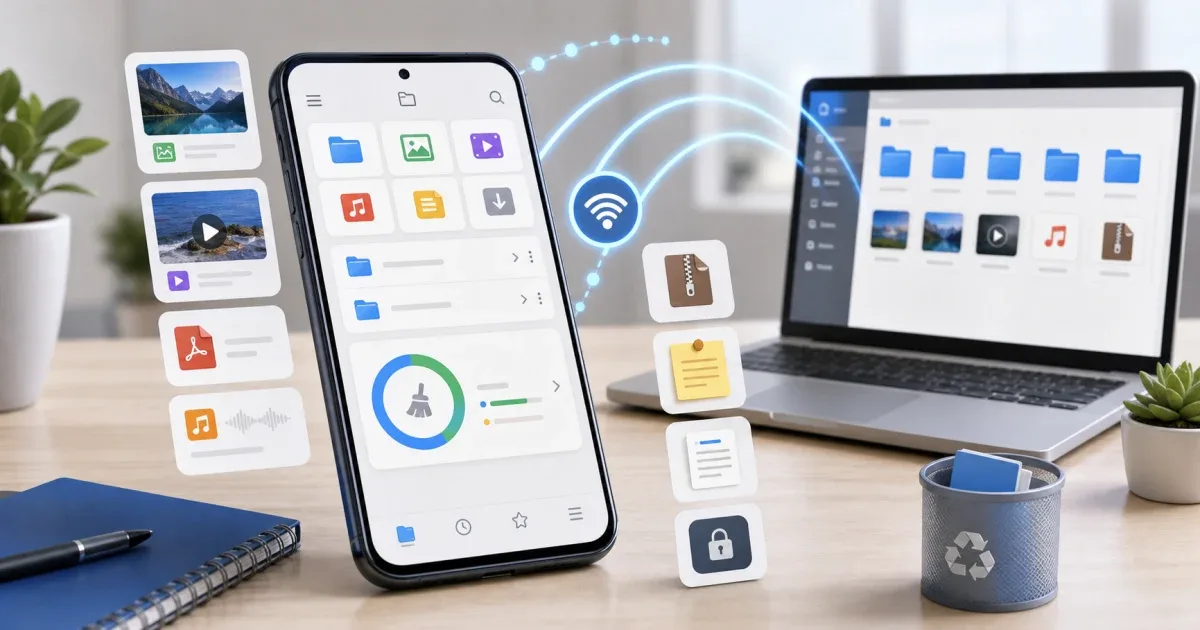
Start with one place for daily files
It is easy for a phone to become a mixed storage box: screenshots, downloads, PDFs, voice notes, videos, archives, and documents all pile up in different folders. To organize files on your phone, the first step is not deleting everything. The first step is seeing what you have and deciding where each file belongs.
Glazr File Manager Pro is built for that daily file workflow. It combines a file browser, media viewers, archive tools, notes, local sharing, and PC transfer in one mobile app, so you do not need to jump between several apps for basic file work.
Sort before you clean
Start from the file browser and look at your main folders: Downloads, Pictures, Videos, Documents, Audio, and any work or school folders you use often. Switch between list and grid views depending on the job. Grid view is better for images and videos because thumbnails help you recognize files quickly. List view is better when names, dates, and sizes matter.
Use categories as shortcuts. Instead of opening folder after folder, jump directly to images, videos, audio, documents, downloads, or APK files. This helps you find the type of clutter you are trying to fix.
Before deleting, create a simple structure:
- Keep one folder for documents you still need.
- Keep one folder for photos or videos waiting to be shared.
- Move old files into an archive folder before removing them.
- Rename important files so they make sense later.
Good file names are boring, but useful. A file called invoice-may-2026.pdf is easier to find than scan_0047.pdf.
Use cleanup tools carefully
Storage cleanup is most useful when it points you toward large, old, or duplicate files. Large videos, repeated downloads, and copied documents often take more space than expected. Glazr File Manager Pro includes cleanup tools to help identify those files, but the decision should still be yours.
Do not delete important files only because they are large. Open them first, check whether they are the final version, and move them if you are unsure. The recycle bin helps because deleted files can be recovered before permanent removal.
If you only need to check whether a file is too large to send, the browser-based File Size Checker can help before you email, upload, or move the file.
Preview files without app switching
One reason phone storage becomes messy is that people avoid opening files. They cannot remember what a PDF contains, which video is the final one, or whether an image is worth keeping. Built-in viewers reduce that friction.
Glazr File Manager Pro includes viewers for images, video, audio, PDFs, and Office documents. That means you can inspect a file before moving, renaming, sharing, or deleting it. For videos and audio, playback controls and speed options are useful when checking long clips. For PDFs and documents, quick viewing helps you avoid sending the wrong attachment.
For important documents, it can also be useful to inspect basic file details with File Metadata Viewer before sharing.
Move files between phone and computer
Many file tasks are easier on a computer. You may want to back up photos, collect PDFs for a report, copy a folder to a laptop, or upload files from a desktop browser. Glazr File Manager Pro supports PC transfer through local network options such as HTTP and FTP.
The practical idea is simple: your phone starts a transfer server, and your computer connects to it on the same network. You can upload or download files without a cable. Recent update notes also highlight background server mode on Android, which is helpful for longer transfers because HTTP and FTP servers can continue running while the screen is off.
Use local transfer when:
- You need to move many files at once.
- The files are too large for chat apps.
- You do not want to route files through cloud storage.
- You are organizing a folder from a larger screen.
For sensitive files, use a trusted private network and turn off the transfer server when you are done.
Keep archives and notes close to the files
Archived files are common in real workflows. You may download a ZIP from a client, receive a compressed folder from school, or need to bundle several files before sending them. Glazr File Manager Pro can handle archives such as ZIP and other common formats, so you can view and extract compressed content without leaving the app.
The notes feature is useful for the small details that usually get lost: what a folder contains, which files were sent, or which documents still need review. A quick note beside your file workflow is often enough to prevent repeated checking.
Use local sharing and chat for nearby work
Not every transfer needs the internet. Glazr Chat is designed for local network communication, including text messages, image sharing, QR joining, and multiplayer games inside the chat. For file work, the important part is that nearby users can coordinate on the same network.
This is useful in classrooms, offices, homes, or small teams where people are nearby and need to exchange files or confirm what has been received. It is not a replacement for every messaging app, but it is a practical local option when the people and devices are in the same place.
A simple weekly file routine
A weekly routine keeps storage under control without turning file management into a chore:
- Open Downloads and delete files you no longer need.
- Move documents into named folders.
- Rename important PDFs, images, and recordings.
- Use cleanup to review large and duplicate files.
- Transfer long-term files to a computer when needed.
- Empty the recycle bin only after you are sure.
The best file manager is not just a place to delete files. It is a workspace where you can find, preview, move, transfer, and protect your files with fewer interruptions. Glazr File Manager Pro is useful because it brings those everyday actions into one app instead of scattering them across your phone.