 English
 العربية
 Français
 Deutsch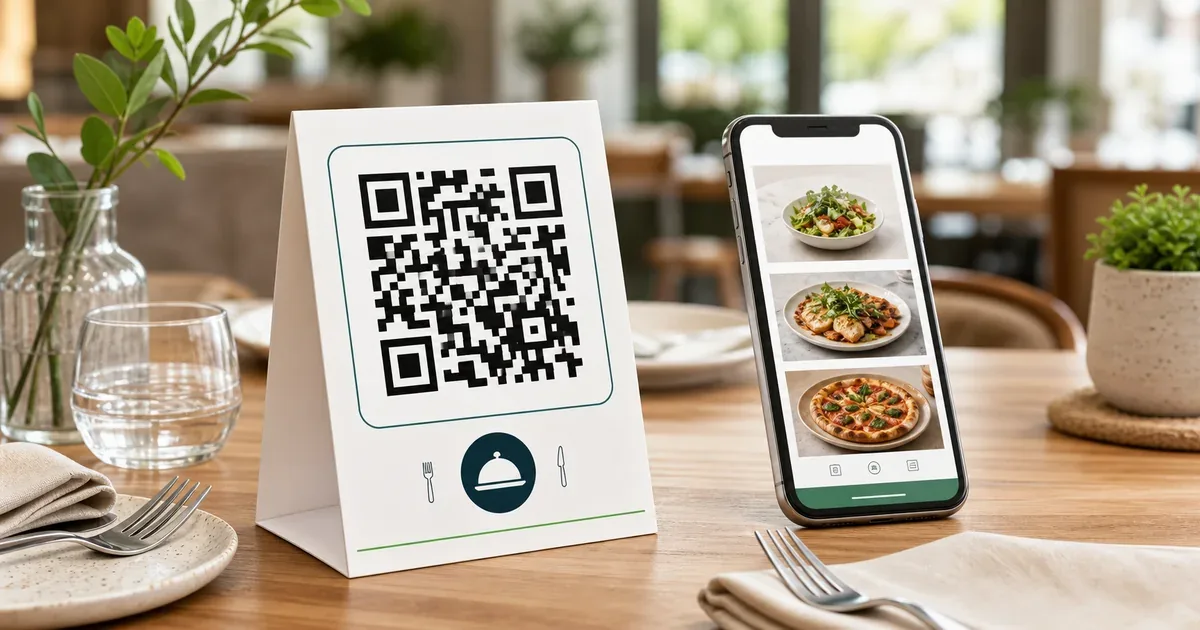
Start with the menu link, not the QR code
A restaurant QR code is only useful if the page behind it is clear, fast, and easy to read on a phone. Before generating the code, decide where customers should land.
The best destination is usually a mobile-friendly menu page on your website. A PDF can work, but it should load quickly, show readable text without pinching, and avoid huge image-only pages. If your menu changes often, a webpage is easier to update than a PDF because the printed QR code can stay the same while the page changes.
When the destination is ready, copy the final public URL. Open it in a private browser window or on another phone to confirm that it does not require a staff login, hidden preview mode, or a private file link.
Create the restaurant menu QR code
Use the QR Code Generator to create a scannable code for the menu link.
- Open the URL tab.
- Paste the public menu link.
- Generate the QR code.
- Download the result as PNG or SVG.
- Save a copy with a clear file name, such as
restaurant-menu-qr.png.
For print, SVG is useful when your designer or print shop can place vector artwork. PNG is convenient for quick table cards, posters, stickers, and simple menu inserts. If you use PNG, keep the downloaded file large enough for printing and avoid shrinking it too much.
The QR generator runs in your browser. The menu link you enter is processed locally by the page; it does not need to be sent to a server just to create the QR image.
What should the QR code contain?
For a restaurant menu, use a URL in most cases. Do not place the whole menu text inside the QR code. Long text creates a denser code, which is harder to scan on a small table card.
Use one focused destination:
- Full menu page
- Breakfast menu
- Drinks menu
- Online ordering page
- Reservation page
If your restaurant has multiple branches or languages, keep the printed code simple. Send customers to a landing page where they can choose the branch or language, instead of printing many small QR codes that compete for attention.
Make it easy to scan at the table
Customers should not have to guess what the QR code does. Add a short label near it, such as "Scan for menu" or "View today's menu". The label matters because a plain QR code with no context can feel suspicious.
Use strong contrast. Black code on a white or very light background is the safest choice. Colored QR codes can work, but the foreground should stay much darker than the background. If you want to match brand colors, use Color Picker to sample your logo color, then test the code carefully after styling.
Leave quiet space around the code. Do not place text, borders, photos, or icons too close to the square. That blank margin helps phone cameras detect the code.
Avoid placing the QR code on glossy or heavily textured surfaces if the lighting in the restaurant creates glare. Table tents, small acrylic stands, and matte cards are usually easier to scan than shiny menus.
Test before printing a batch
Before sending 200 cards to print, test one version.
Use at least two phones if possible. Test from normal sitting distance, under restaurant lighting, and at the size you plan to print. Open the link, check loading speed, and make sure customers land directly on the menu rather than a home page.
You can also use QR Scanner to test a downloaded image or a printed sample. This is useful when you want to confirm exactly what URL is inside the code before handing files to a printer.
If scanning is unreliable, simplify the design. Increase the printed size, improve contrast, remove the logo overlay, or use a shorter link.
Should you add a logo to the QR code?
A small logo can make the code look more branded, but it should not reduce scan reliability. If the QR code will be printed small, skip the logo. If it will appear on a large poster or table sign, a centered logo can work after testing.
The safest restaurant setup is simple:
- Clear black QR code
- White background
- Short label
- Menu URL
- Enough margin around the square
Branding can sit around the QR code rather than inside it. For example, place the restaurant logo above the code and the call to action below it.
Prepare a print-friendly card
After downloading the QR code, place it into your table card, flyer, window poster, or printed menu. If you need a quick visual layout, use Image Editor to prepare a simple graphic with the QR code, a heading, and a short instruction.
For table use, keep the design uncluttered. A good card can include:
- Restaurant name or logo
- Short instruction
- QR code
- Backup short URL for customers who cannot scan
- Optional note like "Ask us for a printed menu"
The backup short URL is useful for accessibility and for older phones. Do not rely on the QR code as the only way to see the menu.
Update the menu without reprinting
The biggest advantage of a QR menu is that the printed code can stay the same while the menu page changes. Keep the URL stable. Update the page content, not the QR code, whenever prices, seasonal items, or opening hours change.
Avoid linking directly to temporary preview URLs, cloud file previews, or social posts that may change later. Use a stable page you control.
If you must replace the menu URL, consider redirecting the old URL to the new one. That protects already printed cards.
Final checklist
Before printing, check these points:
- The menu link opens without login.
- The page is readable on a phone.
- The QR code scans from table distance.
- The printed size is large enough.
- The design has strong contrast and enough white space.
- A short label tells customers what they will open.
- A backup URL or staff option exists for accessibility.
Use QR Code Generator to create the code, QR Scanner to test it, and Color Picker if you want brand colors without losing scan contrast.