 English
 العربية
 Français
 Deutsch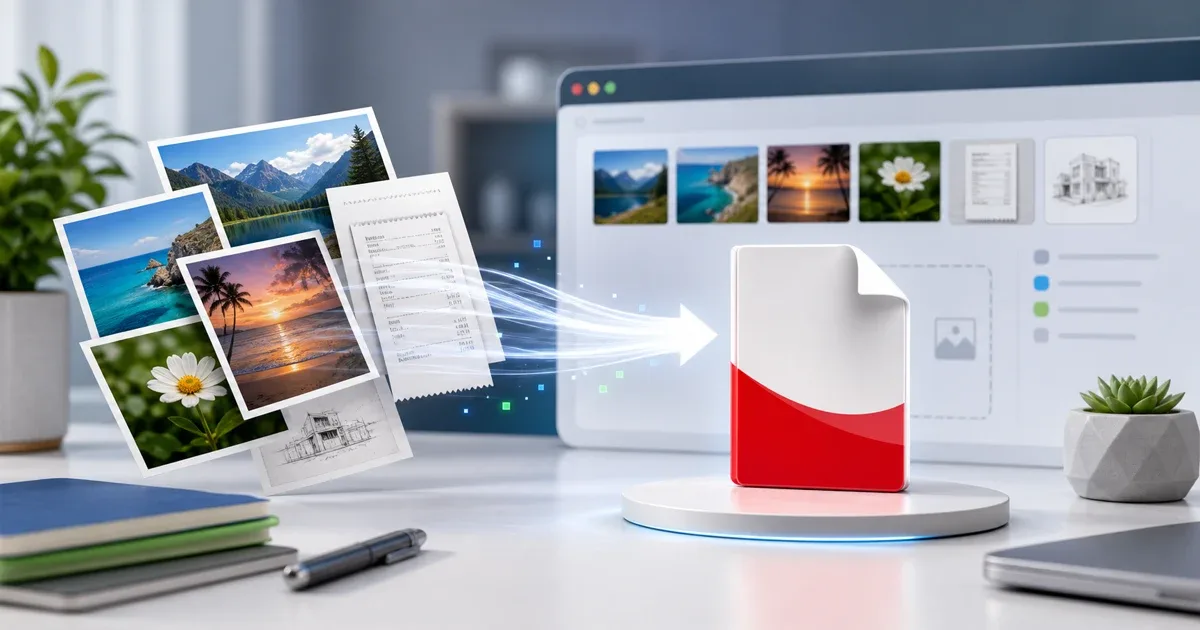
Why make a PDF from photos?
Photos are easy to take, but they are not always easy to send as a document. A teacher, client, school portal, or office form may ask for one PDF instead of five separate images. Receipts, signed pages, handwritten notes, homework pages, and quick scans are all easier to review when they sit in one ordered file.
The Images to PDF tool is built for that workflow. You add JPG, PNG, or WebP images, reorder them, choose page settings, and generate one PDF in the browser. For this browser-based tool, the images do not need to leave your device.
The quickest safe workflow
Start by collecting the photos in the order you want them to appear. Rename them if the order is confusing, or keep them in a temporary folder so you do not miss a page.
Open Images to PDF, add the images, then check the thumbnails. Drag pages into the right order before creating the PDF. Use one clear file name after download, such as receipts-june.pdf, homework-pages.pdf, or signed-form.pdf.
Before sharing, open the PDF once. Check the first page, the last page, and any page that contains small text.
Prepare photos before converting
Good source images make a better PDF. Crop away table edges, fingers, shadows, and extra background before you combine the pages. If a receipt or form is tilted, straighten it first so the PDF is easier to read.
If the photos are very large, the PDF may also become large. For quick sharing, make a copy of the images and reduce their size first with Image Compressor. Keep the original photos safe if you may need a sharper archive later.
For documents with small text, do not over-compress the images. A slightly larger PDF is better than a file that looks clean but cannot be read.
Page size, orientation, and margins
Use A4 for most school, office, and international documents. Use Letter if the recipient expects US paper size. Choose a fit-to-image style when every photo has a different shape and you want each page to follow the image.
Portrait works best for receipts, forms, notes, and most scanned pages. Landscape is useful for wide whiteboards, charts, or horizontal photos.
Small margins usually make a PDF look cleaner. No margin can work for full-page scans, but it may make a casual photo feel cramped.
Common mistakes to avoid
Do not add photos in random order and assume the PDF will still make sense. Page order is the main difference between a helpful document and a confusing bundle.
Do not mix personal photos with work receipts or forms. Check the thumbnails before generating the PDF.
Do not send the PDF without opening it. A page may be rotated, blurry, cropped, or duplicated.
Do not use the highest-resolution originals for a simple upload form unless the form requires it. Very large PDFs can fail on portals with upload limits.
When to use another tool
After creating the PDF, use PDF Editor if you need to add a note, highlight an area, mark a page, or review the final document before sending it.
If you already have several PDFs and want one combined file, use Merge PDF instead of converting pages back into images.
If the final PDF is only part of a larger document, create the photo-based PDF first, then merge it with the other PDF files in the correct order.
Final checklist
Before you share the PDF:
- Confirm every photo belongs in the file.
- Put pages in the right order.
- Choose A4, Letter, or fit-to-image based on the recipient.
- Open the downloaded PDF and check readability.
- Rename the file clearly.
Use Images to PDF when you need to turn photos, receipts, scans, or image pages into one organized PDF without installing extra software.