 English
 العربية
 Français
 Deutsch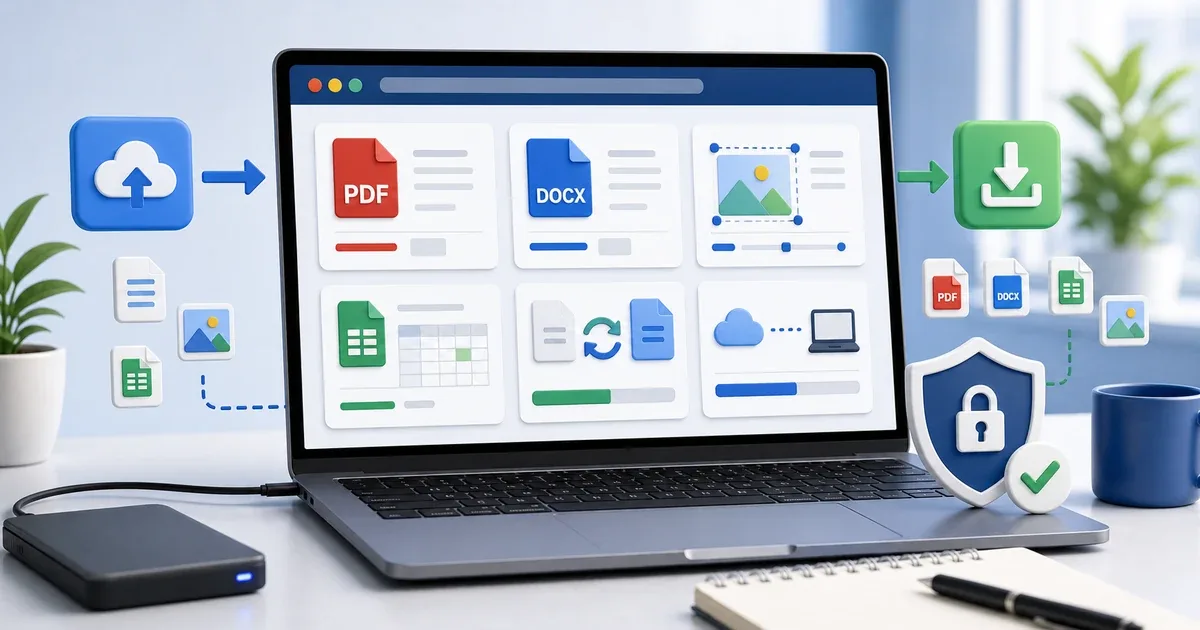
When a browser workflow is enough
Not every file task needs a full desktop application. Sometimes you only need to check a file, fix a small document, annotate a PDF, crop an image, update a spreadsheet, or prepare a file before sending it.
For those jobs, browser-based tools can save time. You open the page, complete the task, download the result, and move on. There is no installer, account setup, or app switching.
The important point is choosing the right workflow. Browser tools are best for quick, focused tasks. Desktop software is still better for complex layouts, very large projects, advanced collaboration, or workflows that need deep system integration.
Step 1: inspect the file first
Before editing anything, check the file. A wrong file type, huge size, tiny image, or unexpected media duration can waste time later.
Use File Metadata Viewer when you need to check file name, size, type, extension, last modified date, image dimensions, or audio and video duration.
If your main concern is sending limits, use a file size tool first. If your concern is whether a copied file matches the original, use checksum verification.
This first step prevents common mistakes: uploading the wrong file, sending a low-resolution image, or editing an outdated version.
Step 2: choose the right editor
For Word documents, DOCX Editor is useful when you need to open a .docx, change text, adjust formatting, add a table or image, and save back to DOCX, HTML, or PDF.
For PDFs, PDF Editor is better for annotation and page work. You can open a PDF, add text, drawing, highlights, shapes, images, or a signature, reorder pages, rotate pages, extract selected pages, and save the edited file.
For images, Image Editor is useful before publishing or sharing. You can prepare visuals without opening a heavy design program when the job is small.
For spreadsheets, XLSX Editor is useful when a file needs a quick correction, review, or small update.
Step 3: keep the task small
The best browser workflow is focused. Do not try to redesign an entire report if you only need to fix one line. Do not open a full image editor when you only need to crop or resize. Do not rebuild a spreadsheet if you only need to correct one value.
Start with the smallest change that solves the problem:
- Check metadata
- Edit the required field
- Save or export
- Reopen the result once
- Send or archive the final file
This keeps the process fast and reduces mistakes.
Step 4: know when desktop software is better
Browser tools are practical, but they are not always the right choice. Use desktop software when a file has complex layout, track changes, advanced templates, very large media, macros, deep spreadsheet formulas, or collaborative editing requirements.
For example, a quick Word correction is fine in a browser. A full legal document with comments, tracked changes, footnotes, and complex section formatting may still need dedicated office software.
A quick PDF annotation is fine in a browser. A production-grade PDF workflow with redaction, OCR, prepress settings, or form automation may need a specialized app.
The goal is not to replace every desktop tool. The goal is to avoid opening one when the task is simple.
Step 5: protect privacy by understanding the tool
Many IGY Apps browser tools process files locally. That means the work happens in your browser rather than requiring a server upload for the core task.
Still, you should read the tool notes and choose carefully when handling sensitive files. For private work documents, client files, school records, or personal photos, prefer tools that clearly state local processing and avoid sharing the result until you have checked it.
A practical example
Imagine you need to send a corrected PDF and a resized image to a client. A clean workflow could be:
- Check the files with File Metadata Viewer.
- Annotate or reorder the PDF in PDF Editor.
- Prepare the image in Image Editor.
- Download both results.
- Reopen the final files once before sending.
This is the kind of task where browser tools are usually enough.
Final tip
Use browser tools when the task is small, clear, and time-sensitive. Use desktop software when the file is complex, long-term, collaborative, or deeply formatted.
For everyday document, image, PDF, spreadsheet, and file-checking tasks, start with the relevant IGY Apps browser tool and keep the workflow simple.