 English
 العربية
 Français
 Deutsch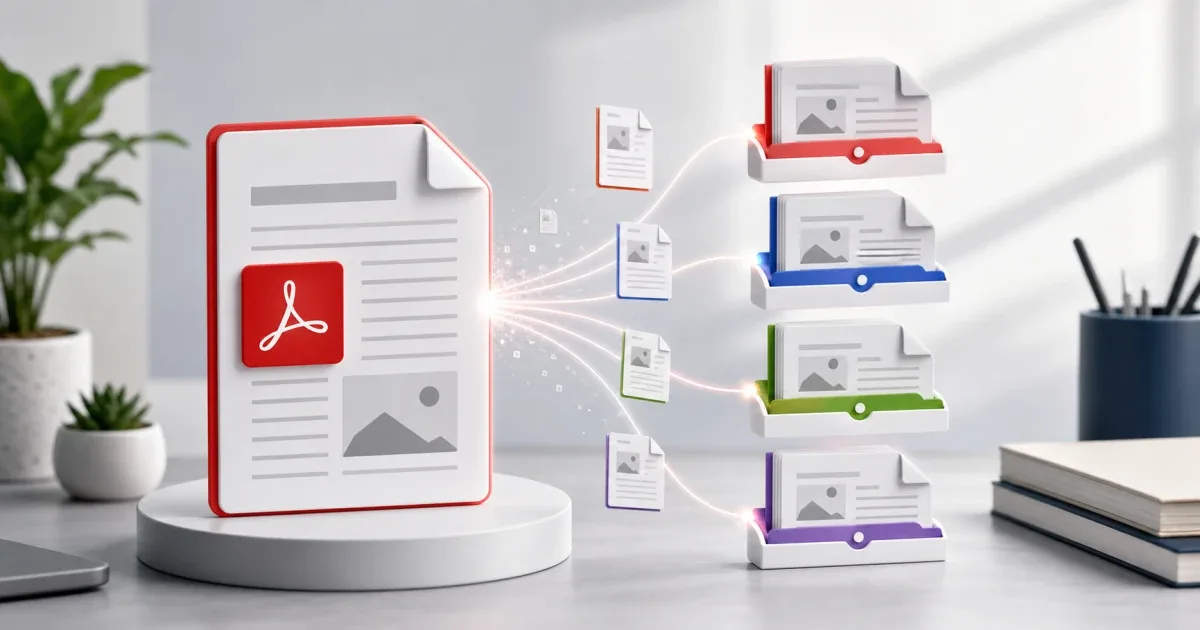
Why split a large PDF?
Large PDFs are hard to send, review, upload, and organize. A school book, training manual, scanned contract, report, or project file may contain hundreds of pages when you only need one chapter or one section. Splitting the document keeps the workflow lighter.
The goal is not just to make the file smaller. A good split makes the document easier to understand. Instead of sending manual-final-version-2.pdf, you can send chapter-03-installation.pdf or invoice-pages-12-18.pdf.
Use Split PDF when you want to extract a range of pages from a PDF in the browser and download a smaller file.
Plan the page ranges first
Before opening the tool, write down the page ranges you need. This avoids the most common mistake: splitting the wrong pages and only noticing after sending the file.
For a chapter-based document, open the PDF and check the table of contents. A chapter may start on printed page 25, but the PDF viewer may count the cover and introduction as pages 1 and 2. Always use the PDF viewer page number, not only the printed page number inside the document.
For example:
- Chapter 1: PDF pages 5-18
- Chapter 2: PDF pages 19-42
- Appendix: PDF pages 110-124
If you are preparing a file for a school portal, client upload, or email attachment limit, also check the maximum file size before you split. A smaller range usually means a smaller file.
The quickest workflow
Open Split PDF, add your PDF, then choose the page range you want to extract. Start with one chapter or one section. Download the result and open it before creating more files.
Name each output file clearly. Short names are easier to manage:
biology-chapter-04.pdfcontract-signature-pages.pdfreport-summary-pages.pdf
If you need several chapter files, repeat the process for each range. Keep the original PDF safe until you have checked every smaller file.
What to check after splitting
Open the new PDF and confirm three things.
First, check the first and last page. Make sure the chapter starts and ends where expected. If the first page is a title page or the last page is a blank page, decide whether that is useful or should be removed.
Second, check page order. This matters for scanned documents because pages may have been scanned in the wrong sequence.
Third, check file size. If the extracted PDF is still too large, it may contain high-resolution scans. In that case, you may need a lighter scan, fewer pages, or a separate compression workflow.
When to use another PDF tool
Splitting is only one part of a PDF workflow. If you split several chapters and later need to send them as one document again, use Merge PDF to combine them in the correct order.
If you need to mark a chapter, add notes, highlight sections, or place a label before sending it, open the smaller result in PDF Editor.
If you need individual page images for slides, thumbnails, or a website preview, use PDF to Image after splitting. Converting a small chapter is usually faster than converting the full document.
Common mistakes to avoid
Do not delete the original file too early. Keep it until every chapter file has been checked.
Do not rely only on printed page numbers inside the PDF. Viewer page numbers and printed page numbers can differ.
Do not send a file named split.pdf or download.pdf. Clear file names reduce confusion, especially when several people review the same documents.
Do not split private documents on a public or shared computer unless you can safely remove downloaded files afterward.
Final checklist
Before sharing the smaller PDF:
- Confirm the page range.
- Open the output file.
- Check the first page, last page, and page order.
- Rename the file clearly.
- Keep the original PDF until the task is finished.
For everyday document cleanup, Split PDF is the fastest way to turn one large PDF into focused chapter files without installing extra software.