 English
 العربية
 Français
 Deutsch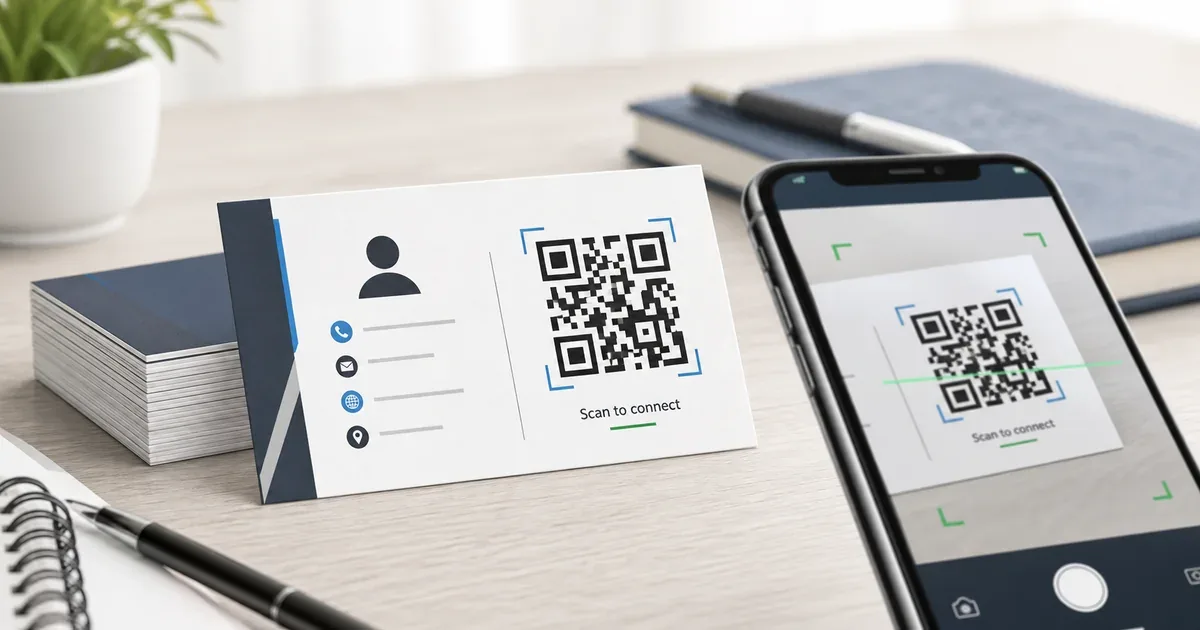
Decide what the QR code should do
A QR code on a business card should make the next step easier. It should not replace the card itself. The printed card still needs your name, role, and basic contact information. The QR code can add the digital action that does not fit well on paper.
Start by choosing one goal:
- Save your contact details
- Open your portfolio
- Visit your booking page
- Open your LinkedIn or company profile
- Download a brochure or media kit
- Start an email draft
Do not put too many goals into one code. A business card is small, and the person scanning it is usually in a quick networking moment. One clear destination works better than a dense QR code with every possible detail.
vCard or URL: which is better?
Use a vCard QR code when your main goal is to help people save your contact details. This is useful for consultants, sales teams, freelancers, real estate agents, clinic staff, and service providers who want to be added to a phone quickly.
Use a URL QR code when your online page is more important than saving a contact. This fits designers, developers, photographers, restaurants, coaches, agencies, and anyone whose portfolio, booking page, or product page explains the offer better than a contact card.
The QR Code Generator supports both workflows. Use the vCard tab for contact details, or the URL tab for a website, portfolio, booking link, or profile page.
If you are unsure, choose a URL to a clean profile page that includes your contact options. A profile page can be updated later without reprinting the card, while a vCard printed into the QR code is fixed.
Keep the QR code simple enough to scan
Business cards are small, so scan reliability matters. A QR code with too much data becomes dense, and dense codes need more space to scan cleanly.
For small cards, a short URL is usually easier to scan than a long URL with tracking parameters. Remove unnecessary query strings before generating the code. If you use a vCard, include the essential fields only: name, phone, email, company, role, and website. Avoid long notes or multiple addresses unless they are truly needed.
The code should usually be at least 18-20 mm wide on the printed card. Larger is safer, especially if the card uses textured paper, colored ink, or a matte laminate.
Where to place it on the card
Place the QR code where it has enough quiet space around it. The back of the card is often the cleanest place because you can give the code room without crowding the name and title.
Good layouts include:
- Front: name, role, company, short contact details
- Back: QR code, short label, website or handle
Or:
- Left side: logo and identity
- Right side: QR code with a clear call to action
Do not place the code too close to the edge, fold, rounded corner, or cut line. Ask the printer for bleed and safe-area guidelines, then keep the QR code inside the safe area.
Add a short label
A QR code without context can feel vague. Add a short label that tells people what will happen:
- Save my contact
- View portfolio
- Book a call
- See my work
- Open company profile
The label should be short enough to keep the card clean. Avoid long instructions like "Scan this QR code with your phone camera to visit my website". Most people already know how to scan; they need to know why.
Color and logo choices
Black on white is the safest option. Brand colors can work, but the code must keep strong contrast. If you want to match a brand color, use Color Picker to sample the color, then keep the QR pattern much darker than the background.
Avoid pale gray, gold on cream, light blue on white, or any low-contrast combination. These may look elegant in a mockup but fail under real lighting.
Adding a logo inside the QR code can work when the code is printed large enough, but business cards do not give much space. If the card is small, place the logo near the QR code instead of inside it.
Export for print
When you create the code, download a high-quality file. SVG is usually best for professional printing because it stays sharp at any size. PNG can also work if it is exported large enough and placed without heavy compression.
Do not take a screenshot of the QR code and send that to print. Screenshots can blur edges, reduce resolution, and introduce scaling artifacts.
If you need a quick mockup or a simple image layout, download the QR code and use Image Editor to prepare a preview. For final print files, follow your print shop's preferred format.
Test before ordering cards
Test the QR code before printing a full batch.
- Export the card at the real size.
- Print one sample if possible.
- Scan it with at least two phones.
- Test under normal indoor lighting.
- Confirm that the destination opens quickly.
- Check that the printed label matches the destination.
You can also use QR Scanner to inspect an exported image and confirm the encoded content before it goes to print.
If the scan is unreliable, increase the code size, simplify the encoded content, improve contrast, or remove the logo overlay.
Final recommendation
For most business cards, use a QR code that opens a profile page or saves a clean vCard. Keep the code large enough, leave white space around it, label it clearly, and test it at the real print size.
Use QR Code Generator to create the code, QR Scanner to test it, and Color Picker if you want brand colors without sacrificing scan reliability.