 English
 العربية
 Français
 Deutsch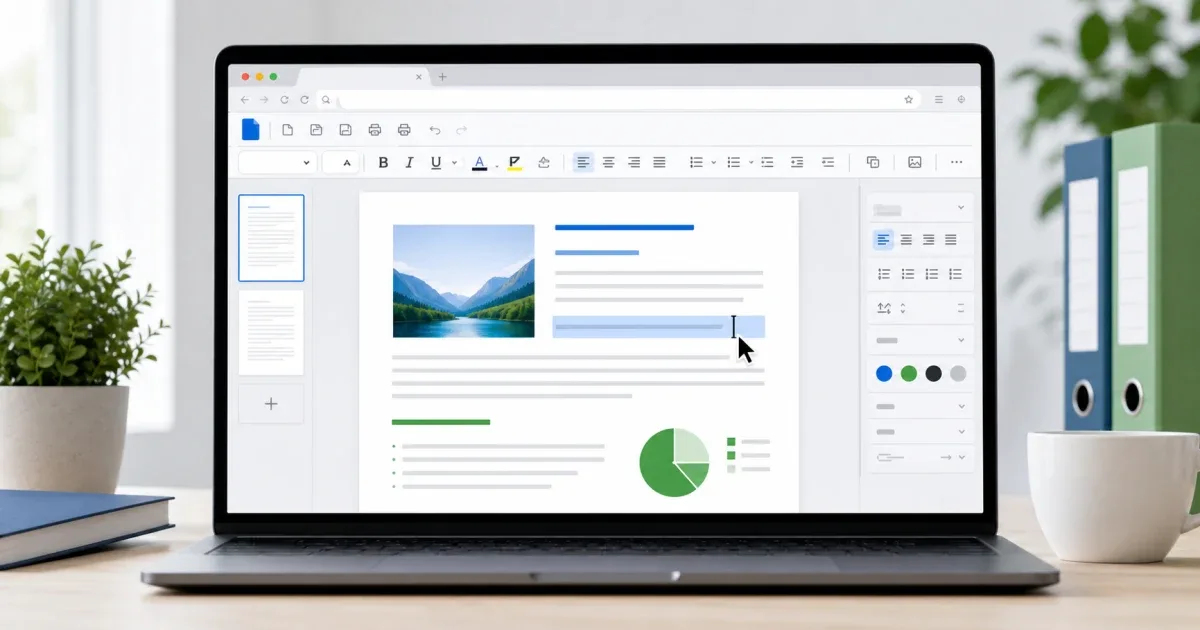
Edit a Word document online without signup
Sometimes a Word document only needs one practical change: fix a typo, update a date, remove an old sentence, adjust a heading, or review the file before sending it. Installing a full office suite or creating an account for that small edit can be unnecessary.
The free DOCX Editor lets you open and edit Word documents in the browser. You can make focused text changes, review formatting, and save a clean DOCX copy without a signup step.
This guide matches searches like "edit Word document online free", "DOCX editor online", "Word online without signup", and, for German search intent, "Word online kostenlos ohne Anmeldung". The need is the same: open a Word file, make a safe edit, and download the result.
Quick answer
To edit a Word document online for free, open the DOCX Editor, choose your .docx file, make the text or formatting change, then save a new DOCX copy. The document stays in your browser while you work, so the workflow is best for quick, visible edits rather than complex tracked changes or macro-heavy files.
Watch: edit a Word document from your phone
This walkthrough uses the real IGY Apps editor on a phone. It shows how to open a DOCX file, make focused text and formatting changes, review the result, and save the edited document. You can follow along in the DOCX Editor; the written steps below remain available for quick reference.
2026 workspace update
The DOCX Editor now feels more like a familiar office workspace: a compact ribbon, clearer formatting controls, tables, images, links, page settings, headers and footers, comments, revision tools, search and replace, and local drafts. If you need to edit a Word document online for free, the familiar layout makes everyday DOCX changes easier without hunting through a long page of buttons.
It is still important to think of the browser editor as a practical document workspace, not a promise of full desktop Word parity. Use it for visible editing, review, export, and cleanup. Keep a desktop editor for documents with macros, advanced legal review, or print-perfect publishing requirements.
When browser editing is the right choice
A browser-based document editor is best for quick, visible changes. Use it for letters, school assignments, resumes, reports, short forms, meeting notes, and documents received by email or messaging apps.
It works especially well when you need to:
- Correct text or a date.
- Update a heading or paragraph.
- Check formatting before sharing.
- Remove outdated content.
- Save a new DOCX copy.
- Avoid installing desktop software for a small task.
If the document contains macros, tracked changes, unusual embedded objects, complex page layouts, or highly designed templates, review the output carefully. For advanced publishing workflows, a desktop editor may still be safer.
How to edit a DOCX file online
Use this workflow:
- Open the DOCX Editor.
- Choose your DOCX file.
- Wait for the document to load.
- Scan the first page before changing anything.
- Make the focused edit first.
- Check the paragraph, heading, table, or image around the change.
- Save the edited document as a new DOCX file.
Do not start by changing everything. Small, focused edits are easier to review and less likely to disturb the rest of the layout.
Check formatting after each important edit
Word documents can be sensitive to small changes. Adding one sentence may move a table, shift a page break, or push a signature block to the next page. After each important edit, inspect the surrounding area.
Use this review pattern:
- Check the edited paragraph.
- Check the heading above it.
- Check the paragraph or table below it.
- Review lists and numbering.
- Check images, headers, and footers if the document uses them.
- Confirm the final page count if the file must stay within a limit.
If you are writing new text before placing it in the document, the Word Counter can help you keep answers, summaries, and bios within a required length.
Save a new copy, not the only copy
Keep the original document until the edited file is confirmed. A clear file name prevents confusion, especially when the same file has been downloaded several times.
Use names like resume-updated.docx, assignment-final.docx, or letter-edited-2026-05.docx. Then open the downloaded file once more before sending it.
Watch: convert a Word document to PDF
After editing, you may need a PDF copy that preserves the document layout for sharing or printing. The video below shows how to review the file in the DOCX Editor, open the browser print workflow, save the document as a PDF, and check the downloaded result. Keep the original DOCX when you may need more edits later.
Browser tool or mobile DOCX app?
Use the browser tool on a computer or modern phone when you need a quick edit without installation. Use a mobile app when Word files arrive on your phone and you want an offline, device-based workflow or edit documents repeatedly.
For mobile document work, Glazr DOCX File Editor is built for creating, opening, editing, exporting, and sharing DOCX documents from a phone or tablet. The browser editor is the fastest path for one-off edits; the app is better for repeated mobile document work.
Common mistakes to avoid
Avoid editing the wrong copy. Check the file name, folder, and date before opening the document.
Avoid pasting rich text without checking the style. Text copied from email, chat, or a website can bring strange fonts, spacing, and colors into the file. Match the surrounding style before saving.
Avoid sharing immediately after download. Reopen the edited file, scan the important pages, and confirm tables, lists, and images still look right.
Final checklist
Before sharing the edited Word document:
- The file opens after download.
- The corrected text is visible.
- Headings, lists, tables, and images still look right.
- The file name marks it as the latest version.
- Any PDF export was created after the final DOCX edit.
- If you will upload or email the file, check the finished size with File Size Checker.
FAQ
Can I edit a Word document online without signup?
Yes. The DOCX Editor opens Word documents in the browser, so you can make small edits without creating an account or installing office software.
Is my DOCX file uploaded?
No. The editing workflow runs locally in your browser. Still, always reopen the saved copy before sending it, especially when tables, images, headers, or footers matter.
When should I use desktop Word instead?
Use a desktop editor for documents with macros, tracked changes, complex templates, or print-perfect layout requirements. Use the browser editor for quick text corrections, forms, resumes, notes, and simple reports.
For quick no-signup editing, open the free DOCX Editor, make the change, review the layout, and save a clean Word document from your browser.