 English
 العربية
 Français
 Deutsch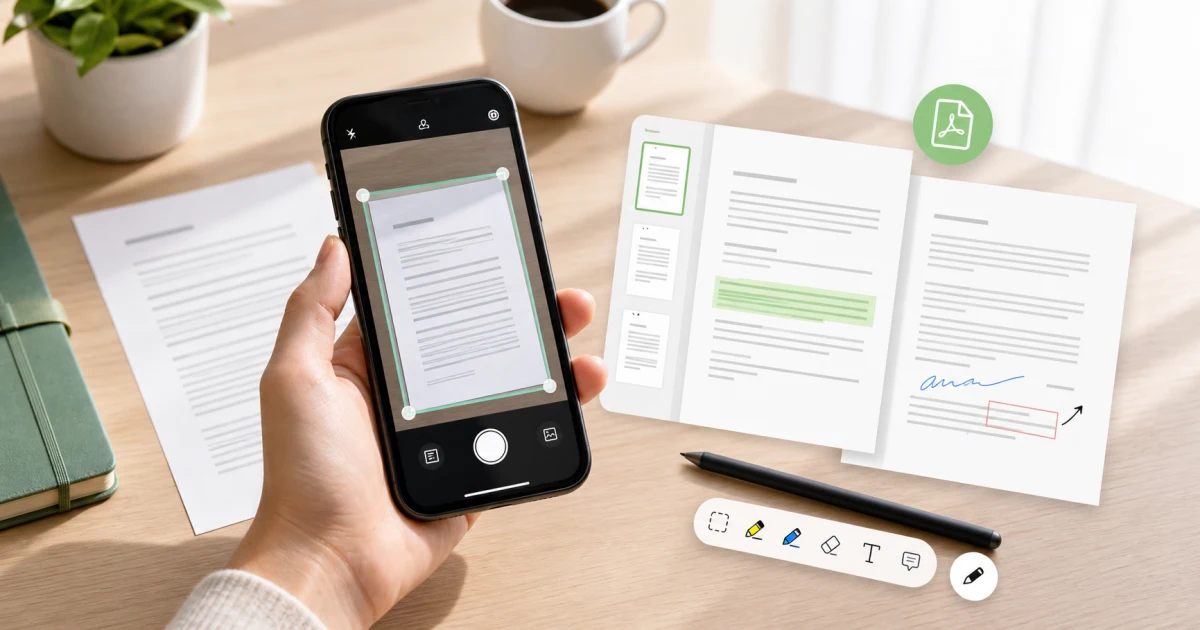
Why scan PDFs on a phone?
Many document tasks start away from a computer. You receive a paper form, a receipt, a classroom handout, a signed page, or a printed contract, and you need to turn it into a usable PDF quickly. Taking a normal photo is usually not enough because the result can be tilted, hard to read, and difficult to organize.
A PDF scanner app for phone gives the process a better structure. You scan the page, crop the borders, improve readability, add annotations when needed, and export one clean PDF file. With OCR, the app can also help extract text from the image so the document becomes easier to reuse.
PdfBlend is built for this kind of mobile workflow: scanning, OCR, annotation, page operations, export, and sharing from the phone.
What makes a scanner app useful?
A useful scanner app is not only a camera button. It should help with the full document journey.
First, it should capture pages clearly and let you correct edges. A page that is slightly rotated or cropped badly can look unprofessional when shared.
Second, it should support multiple pages. Real documents are often more than one sheet, so you need a way to keep pages in order, remove mistakes, and export everything as one PDF.
Third, it should include markup tools. A scanned document often needs a signature, note, highlight, arrow, QR code, or text label before it is ready.
Finally, OCR can save time when you need to copy text from a printed page instead of typing it again.
Where PdfBlend fits
PdfBlend combines scanning and PDF editing in one mobile app. You can scan documents with the camera, use OCR text recognition, add annotations, manage pages, create PDFs from images, merge or split documents, compress files, and export the result.
That is useful for students who scan notes, professionals who review forms, small business owners who keep receipts, and anyone who receives paper documents but needs a digital copy.
The app is also privacy-focused because document processing happens on the device. For sensitive files, that can be more comfortable than moving pages through several services.
Phone app or browser tool?
Use a phone app when the document starts on paper. The camera is already there, and it is faster to scan, crop, annotate, and share from the same device.
Use a browser tool when the document is already a file on your computer. For example, if you only need a quick annotation, open PDF Editor. If you already have photos on your computer and want to create a document, Images to PDF is a simple route. If you need to combine several PDFs, use Merge PDF.
The best workflow depends on where the document begins. Paper usually belongs on the phone first. Existing files are often faster in the browser.
A practical mobile scanning workflow
Start with good lighting. Place the paper on a flat surface and avoid shadows over the text. Scan one page at a time and check the crop before moving to the next page.
After scanning, review page order. Delete accidental duplicate pages and rotate anything that appears sideways. If the document needs a signature or comment, add it while the file is still open.
Use OCR when you need text from the paper. OCR is especially useful for typed documents, receipts, printed forms, and classroom sheets. Handwriting may be less reliable, so always check extracted text before using it.
Finally, export the PDF with a clear file name. A name like receipt-may-2026.pdf or signed-form.pdf is easier to find later than a random camera file.
Common mistakes to avoid
Do not scan in low light if the document is important. Blurry scans can make OCR weaker and can make the final PDF hard to read.
Do not keep every accidental page. Remove failed captures before export so the recipient receives a clean document.
Do not rely on OCR without review. OCR is helpful, but names, numbers, and unusual formatting should always be checked manually.
Do not send a giant file if the recipient only needs a readable document. Compression can make sharing easier, especially by email or messaging apps.
Final recommendation
Use PdfBlend when your PDF work starts with paper or camera scanning. It is a practical mobile choice for scan, OCR, annotation, page management, and export.
When the file is already on a computer, use the browser tools instead: PDF Editor for quick annotations, Images to PDF for turning pictures into a document, and Merge PDF for combining files.