 English
 العربية
 Français
 Deutsch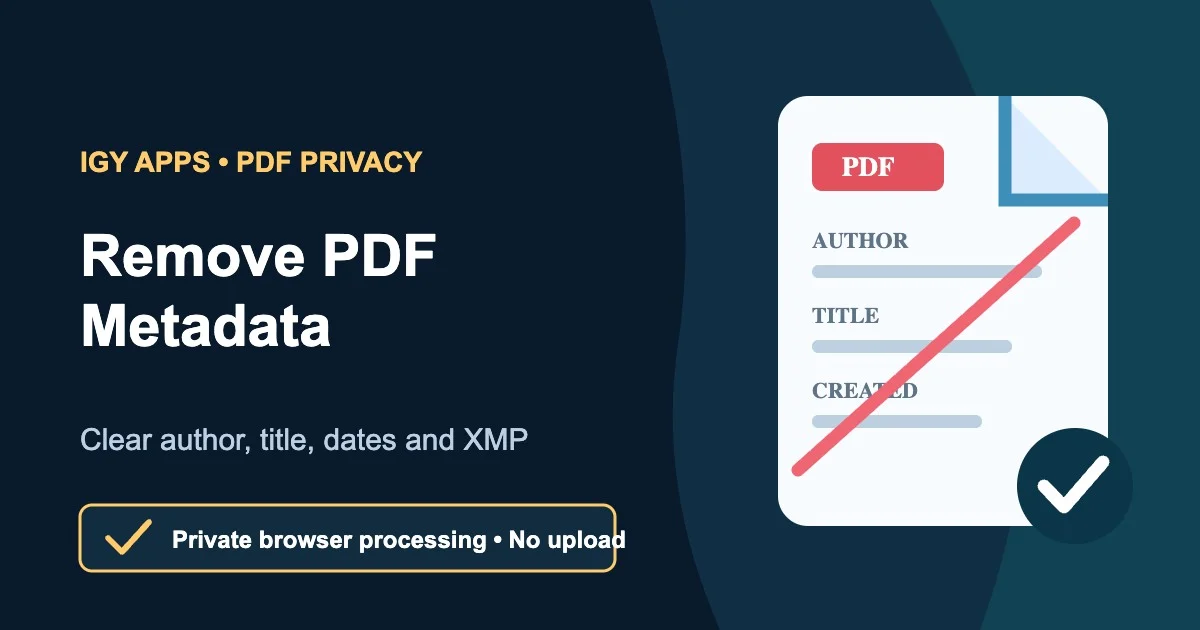
Why a PDF can reveal more than its pages
A PDF may look ready to send while still carrying document properties behind the visible pages. Depending on how it was created, those properties can include the author name, title, subject, keywords, creator application, PDF producer, creation date, modification date, and embedded XMP metadata.
These fields are not automatically dangerous, but they may be unnecessary in a public report, client delivery, job application, invoice, or document published under an organization rather than an individual. Reviewing and cleaning the final copy helps prevent accidental disclosure of old titles, personal names, internal keywords, or software history.
The Metadata Remover can remove supported PDF properties and XMP metadata locally in your browser. The original remains unchanged.
Quick answer
Choose the PDF, review the detected metadata groups, select PDF document properties and XMP when available, then create and download a clean copy. Open the downloaded PDF and inspect it before sharing.
The current tool does not accept password-protected PDFs. If a PDF appears digitally signed, it warns you because saving a changed copy invalidates that signature.
Which PDF metadata can be removed?
The document properties group can include:
- Title
- Author
- Subject
- Keywords
- Creator application
- PDF producer
- Creation and modification dates
The file may also contain an XMP metadata packet with overlapping or additional descriptive information. Advanced mode lets you choose the detected groups, while Quick clean selects all supported removable groups.
The tool removes these properties from the new copy. It does not claim to erase every possible proprietary field, hidden page object, attachment, comment, form value, or visible detail from every PDF ever created.
How to remove PDF metadata online
- Open Metadata Remover.
- Choose the final PDF you plan to share.
- Wait for the local inspection.
- Review PDF document properties and XMP groups that appear.
- Use Quick clean or select the groups in Advanced mode.
- Create and download the clean copy.
- Reopen the downloaded PDF and check important pages, links, forms, and signatures.
Processing happens on your device. The PDF is not uploaded to the IGY Apps server for cleaning.
Digitally signed and password-protected PDFs
A digital signature is tied to the exact document bytes. Removing metadata changes the PDF, so a signature in the cleaned copy is no longer valid. Keep the signed original and do not clean it when signature validity is required.
Password-protected or encrypted PDFs are rejected in this version. Remove protection only when you are authorized to do so, then decide whether cleaning is appropriate. If confidentiality is the final goal, metadata removal and encryption solve different problems.
Clean and review the document first. Then use PDF Protect to encrypt the final copy and set reader permissions if needed.
Metadata cleaning is not full PDF sanitization
Document properties are only one layer. Before sharing a sensitive PDF, also inspect visible names, tracked annotations, comments, form fields, attachments, links, redactions, and page content. A black rectangle placed over text is not necessarily a secure redaction.
The metadata remover focuses on the supported properties and XMP groups it reports. Use an appropriate document review or redaction workflow for confidential page content.
Why can the cleaned PDF be slightly larger?
Removing metadata does not guarantee a smaller file. Saving the clean copy rebuilds parts of the PDF container, so the result may be slightly larger even though the selected properties were removed.
If you also need a smaller attachment, verify the clean copy first and then use PDF Compressor as a separate step. Compression and metadata cleaning have different purposes.
A safer sharing checklist
- Work from the final PDF, not an early draft.
- Keep the original in a private location.
- Remove supported properties and XMP from a copy.
- Open the clean file and check every important page.
- Inspect comments, attachments, forms, links, and visible personal information.
- Rename the file if its name contains private details.
- Encrypt the final copy when access control is required.
Frequently asked questions
Does this remove the author name from a PDF?
Yes, when the author is stored in the supported PDF document properties. The tool also removes other detected properties in that group when selected.
Will removing metadata change the visible pages?
The operation targets document properties and XMP. Always reopen the result because the PDF container is saved again, and complex files deserve a visual check.
Can I clean a digitally signed PDF?
You can create a changed copy, but its digital signature will be invalid. Preserve the signed original whenever the signature matters.
Is the PDF uploaded?
No. Inspection and cleaning run locally in the browser.