 English
 العربية
 Français
 Deutsch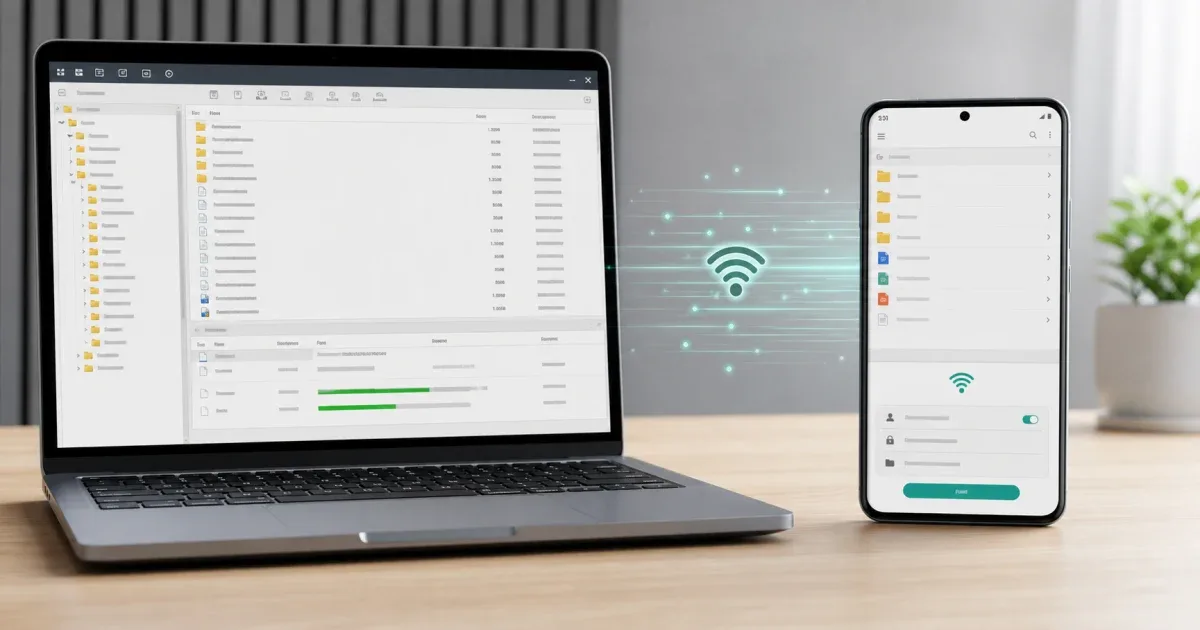
Why FTP is useful for Android file transfer
Moving files between an Android phone and a computer often starts with a simple need: copy photos, save videos, collect documents, or move a folder before cleaning storage. A USB cable can work, but it is not always nearby. Cloud storage works too, but it adds an upload and download step, and some users do not want private files passing through another service.
FTP is a practical middle path. Your phone starts a local file transfer server, and the computer connects to it through the same Wi-Fi network using an FTP client. This makes the phone feel like a network location, so you can browse folders, download files to the computer, or upload files back to the phone.
Glazr File Manager Pro includes PC transfer features for this workflow, including FTP server support on the mobile device. It is especially useful when you want a cable-free transfer that still feels organized on the computer.
What you need before you start
Use a trusted Wi-Fi network. FTP transfer works best when the Android phone and the computer are connected to the same private network, such as home Wi-Fi, office Wi-Fi, or a personal hotspot. Public networks may block device discovery or expose more risk than necessary.
Install any FTP client on the computer. Many users choose a dedicated FTP program, but the exact program is less important than the connection details: host address, port, username, and password. Glazr can provide the server side on the phone, while the computer client connects to it.
Prepare the files before connecting. If you are moving camera videos, downloads, PDFs, or project folders, open the file manager and check the names first. For large files, File Size Checker can help you understand how much data you are about to move.
Start the FTP server on Android
Open Glazr File Manager Pro on the Android phone and go to the PC transfer or FTP server area. Start the FTP server and review the connection details shown by the app. These details usually include a local network address, a port, and login credentials.
Keep the phone connected to Wi-Fi while the server is running. If the Android version of the app supports background server mode, that can help during longer transfers because HTTP and FTP servers can continue while the screen is off. Even so, for important transfers, keep the phone nearby and avoid switching networks until the job is complete.
Use a clear username and password when the app allows custom credentials. Do not leave a transfer server open longer than needed. Local does not mean careless: the server should be active only while you are using it.
Connect from the computer
Open your FTP client on the computer. Enter the address and port shown by Glazr, then add the username and password if required. If the connection fails, check the simplest things first: both devices should be on the same Wi-Fi network, the Android FTP server should still be running, and the address should be typed exactly.
Once connected, browse the phone folders from the computer. Download files by dragging them to a folder on the computer, or upload files by dragging them into the phone folder. This is where FTP feels useful: you can manage folders with a larger screen, keyboard, and mouse instead of selecting everything on a small phone screen.
For big batches, move files in organized groups. Send one folder at a time, or separate videos from documents. This makes it easier to retry a failed transfer without guessing which items were completed.
Download from Android to the computer
The most common FTP task is copying files from Android to the computer. This is useful before freeing storage, editing videos, backing up photos, or collecting documents for work. In the FTP client, choose the destination folder on the computer first, then download the selected phone files into that location.
After the download, open a few files before deleting anything from Android. Check that images display correctly, videos play, PDFs open, and archives can be extracted. If the files are business-critical, use Checksum Generator to compare copies, or use File Metadata Viewer to review basic file details before sharing them again.
Only clean up the phone after you are sure the computer copy works. FTP makes transfer convenient, but it does not replace verification.
Upload from the computer to Android
FTP also works in the other direction. You can upload PDFs, music, videos, documents, archives, or project files from the computer to Android. This is useful when you prepared files on a desktop app and want them available on the phone without a cable.
Choose the destination folder carefully. A clean folder structure prevents confusion later. For example, put work documents into a dedicated folder instead of mixing them with downloads, and put media files where you expect to find them in the phone's file manager.
If you upload many files, watch the transfer queue. Sequential uploads with progress tracking are easier to trust than a large batch that appears frozen. When the upload finishes, open the files on the phone to confirm that Android can read them with the expected app or built-in viewer.
FTP or browser transfer: which should you choose?
If you only need to move one or two files, an HTTP browser transfer may be simpler because it works from a regular web browser. If you want folder browsing, repeated uploads, downloads, and a more desktop-like workflow, FTP is usually better.
The practical rule is simple: use browser transfer for quick one-off jobs, and use FTP when you want to manage several folders or transfer files in both directions. Glazr File Manager Pro supports the broader PC transfer idea, so you can choose the method that fits the task instead of forcing every transfer through the same path.
Security habits for local FTP
Use FTP on trusted networks only. Avoid running a transfer server on public Wi-Fi. Stop the server as soon as you finish, and use credentials if the app provides them. If the transfer contains private documents, customer files, or personal photos, store the computer copy in a sensible folder and do not leave temporary duplicates scattered across the desktop.
For everyday Android-to-computer transfers, FTP is a strong option because it is direct, organized, and cable-free. Start the server on Android, connect from the computer, move files in clear groups, verify the result, then stop the server.