 English
 العربية
 Français
 Deutsch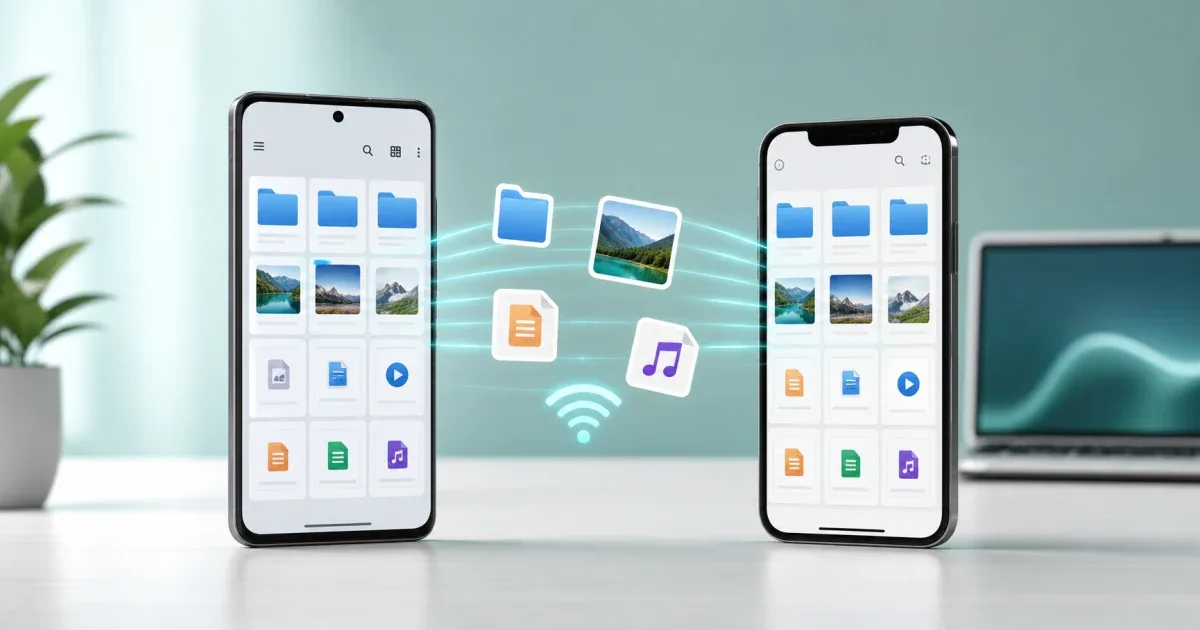
Why Android to iPhone file transfer is still awkward
Moving files between two phones should be simple, but Android and iPhone do not always treat storage the same way. Photos may sit in one app, documents in another, and large videos can fail when you try to send them through chat or email. A cable can help in some cases, but it is not always available, and it often turns a quick task into a computer workflow.
The more practical approach is to use the local network. When both devices are on the same Wi-Fi, you can move files directly between them without uploading everything to a cloud service first. Glazr File Manager Pro is useful for this type of work because it is designed for file browsing, Wi-Fi sharing, media viewing, and computer transfer on Android and iOS.
This guide focuses on the everyday case: you have files on an Android phone and want to send them to an iPhone without a cable. The same habits also help when you move files in the opposite direction later.
What you need before sending
Before starting, put both phones on the same trusted Wi-Fi network. Local transfer depends on the devices being able to see each other. A home, office, or personal hotspot network is usually better than a public network because it is more predictable and safer for file sharing.
Then prepare the files on the sending phone. Open the file manager, locate the photos, videos, PDF files, archives, or documents you want to move, and remove anything that should not be sent. If the transfer includes a folder of mixed files, rename it clearly before you send it. A name like Trip photos 2026 or Client PDFs May is easier to recognize on the receiving device than a random download folder.
Large videos and ZIP archives deserve a quick check. If you are not sure whether a file is too large for the connection or destination, use File Size Checker first. The goal is not to make the file smaller every time. The goal is to know what you are sending before you start.
How Glazr helps with cross-platform transfer
Glazr File Manager Pro gives the transfer a file-first workflow. Instead of hunting through separate photo, document, and download apps, you can browse storage, search by name, preview common media, and choose the exact items to send. That matters when you are moving files between Android and iPhone because mistakes are easy: one similar video, one old PDF version, or one wrong archive can waste time.
For nearby phone-to-phone sharing, use the app's Wi-Fi sharing flow. The practical idea is simple: one device sends, the other receives, and both stay on the same local network while the transfer runs. Because this is local sharing, it avoids the extra step of uploading the file to an online drive and downloading it again on the second phone.
If a computer is also involved, Glazr includes PC transfer options such as HTTP and FTP. That means you can use a browser or an FTP client on the computer as an intermediate workspace when needed. For this article, the cleanest path is phone to phone, but knowing the computer option exists is useful when the file set is large or needs sorting first.
Step-by-step Android to iPhone workflow
Start on the Android phone. Open Glazr File Manager Pro and browse to the folder that contains the files. If the app shows categories such as images, videos, documents, or downloads, use the category that narrows the search fastest. Preview anything important before selecting it, especially PDFs, office documents, or videos with similar names.
Select the files you want to send. For multiple files, avoid sending a messy set from different folders unless the receiving person expects that. It is usually cleaner to gather related files first, or compress them into one archive when that makes sense. Archives are helpful for project folders, document packs, and groups of small files.
On the iPhone, open Glazr File Manager Pro and go to the receiving or sharing area. Keep the screen awake while the transfer starts. If the app provides a QR or local join flow, use it to reduce typing errors. Confirm that both devices are still on the same Wi-Fi network before blaming the file itself.
Send a small test file first when the transfer is important. A single image or PDF confirms that the devices can connect, the destination is correct, and the receiving side is ready. After that, send the full batch.
What to check after the transfer
Do not assume the job is finished just because the progress bar reached the end. Open the received files on the iPhone. Check that images display correctly, videos play, PDFs open, and archives can be extracted. For work documents, compare the filename and modified date with the original so you do not keep the wrong version.
When the file is sensitive or business-critical, check basic details before you share it again. File Metadata Viewer can help you review simple file information, while Checksum Generator is useful when you need to confirm that two copies match exactly.
After verification, clean up the sending phone only if you are certain the iPhone copy works. Deleting the original too early is the most common mistake in file transfer workflows.
Common problems and quick fixes
If the devices cannot find each other, check the Wi-Fi first. Both phones should be on the same network, and some public networks block device-to-device discovery. Switch to a trusted private network or a personal hotspot if needed.
If the transfer is slow, reduce the batch size. Send large videos separately instead of mixing them with many small documents. Keep both apps open while the transfer is running, and avoid locking the device during the first connection.
If the iPhone cannot open a received file, the transfer may still be correct. The issue may be the file type. Try opening it with the built-in viewer, another compatible app, or send a more common format such as PDF, JPG, MP4, or ZIP when possible.
When this method is better than a cable
Wi-Fi transfer is best when you need a quick move between nearby devices, especially if the cable is missing, the connector does not match, or the files are already organized on the phone. It is also useful when you want to avoid cloud upload for private photos, work documents, or local project files.
A cable can still be useful for full backups or very large libraries. But for everyday Android to iPhone file sharing, a local Wi-Fi workflow with Glazr File Manager Pro is usually easier: prepare the files, connect both devices, send a small test, transfer the batch, and verify before deleting anything.