 English
 العربية
 Français
 Deutsch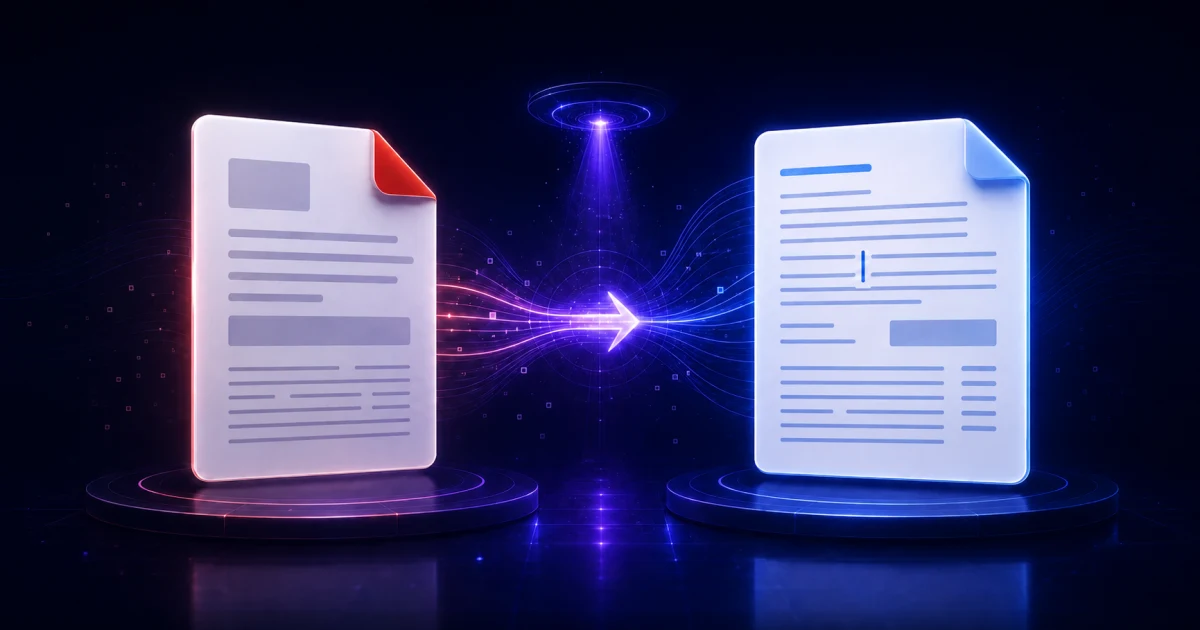
When PDF to Word needs OCR
Some PDFs already contain selectable text. Others are scanned pages: a photo of a paper document wrapped inside a PDF file. Both may look similar on screen, but they need different conversion methods.
The PDF to Word tool handles both cases in the browser. It first tries to extract embedded text because that is fast and usually accurate. If a page has no useful text, or if an older PDF stores Arabic text with broken font encoding, the tool can render that page and use OCR instead.
This makes it useful for forms, school notes, letters, reports, old Arabic PDFs, and mixed Arabic-English documents where copying text directly gives unreadable symbols.
Watch: convert PDF to an editable Word document
The video below shows how to open the PDF to Word tool, choose a file, review the conversion mode, download the DOCX, and open it to check the text and formatting. Use OCR for scanned pages, then review the result before relying on it.
Quick workflow
Open PDF to Word, choose your PDF, keep Automatic mode for most documents, and select Arabic, English, or Arabic + English OCR when the file is scanned. Convert the file, check the preview, download the DOCX, then open the result in a Word editor before relying on it.
For cleanup after conversion, use the DOCX Editor. The converted file is editable, but scanned documents still need review.
Choose the right conversion mode
Automatic mode is the best starting point. It extracts real PDF text when possible and falls back to OCR when the page needs it. This saves time on modern PDFs and still helps with scanned pages.
Use Embedded text only when you know the PDF has selectable, correctly encoded text. This is the fastest path for clean digital PDFs.
Use OCR every page when the PDF is a scan, a photo-based document, or a file where copying text produces strange symbols. For mixed Arabic and English content, choose bilingual OCR so names, numbers, and labels have a better chance of coming through correctly.
What to review after conversion
OCR is powerful, but it is not magic. Always check names, numbers, dates, tables, headings, and paragraph direction. Arabic text can require extra attention when the scan is low contrast, rotated, or printed with decorative fonts.
Use this review checklist:
- Confirm that the main text is readable.
- Check numbers, ID codes, prices, and dates manually.
- Review table columns and line breaks.
- Fix headings and paragraph direction if needed.
- Save a clean copy with a clear file name.
If the source PDF needs page notes or reordering before conversion, prepare it first with the PDF Editor.
Privacy and limits
The conversion runs locally in your browser. The PDF is not uploaded to the IGY Apps server for conversion, and the OCR work happens on your device after the required language files load.
The current limit is one PDF up to 50 MB and 50 pages. The output is a .docx file focused on editable text. Exact page design, complex tables, handwriting, forms, headers, and images may need manual cleanup.
Best use cases
Use PDF to Word when you need to quote, edit, translate, summarize, or reuse text from a PDF. It is especially helpful for scanned worksheets, old reports, official letters, and Arabic documents where normal copy and paste fails.
For sensitive documents, keep the workflow simple: convert and review locally, download the result to a secure folder, then close the tab when you finish.
How to improve OCR accuracy before converting to DOCX
A clear source produces a cleaner Word file. If you can rescan the document, keep pages straight, use even lighting, and avoid shadows across text. A resolution near 300 DPI is usually enough for printed pages. Select the OCR language that matches the document instead of choosing bilingual recognition unless both languages are really present.
After conversion, compare the DOCX with the PDF page by page. This matters most for Arabic letters with similar shapes, decimal points, account numbers, and tables. OCR extracts editable text; it does not promise a pixel-perfect copy of the original layout.
Frequently asked questions
Can I convert a scanned PDF to editable Word?
Yes. Choose OCR or Automatic mode. The tool recognizes text from scanned pages and exports it as an editable DOCX file.
Does Arabic PDF to Word conversion work?
Yes. Select Arabic OCR for Arabic documents or Arabic + English for genuinely bilingual pages, then review names, numbers, and paragraph direction.
Is the PDF uploaded during conversion?
No. Conversion and OCR run in your browser. Language data may be downloaded, but your document is not sent to IGY Apps for processing.