 English
 العربية
 Français
 Deutsch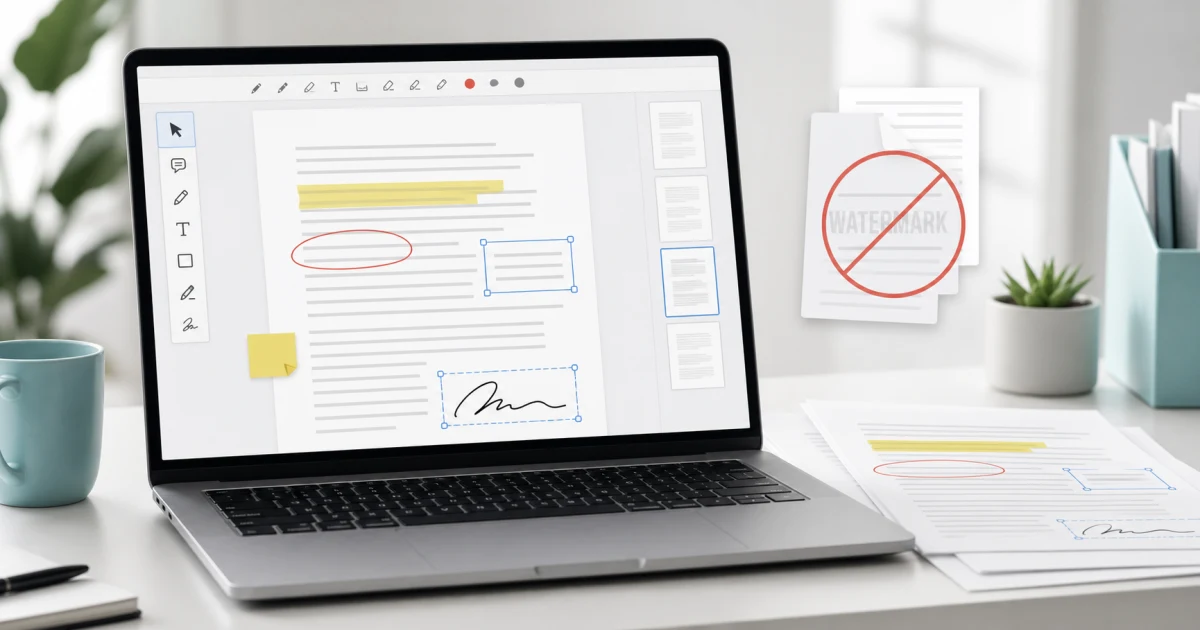
The problem with many PDF editors
Editing a PDF should not turn into a long setup process. Many people only need to add a note, highlight a sentence, sign a simple form, insert a small text box, or review a document before sending it. The problem is that some PDF editors ask for an account, push a desktop installer, or place a watermark on the final file unless you upgrade.
For quick document work, that is usually too much friction. A browser-based editor is often enough, especially when the PDF is already on your computer and you only need light changes.
The practical approach is simple: open a focused PDF Editor, make the visible changes you need, export the updated file, and check the result before sharing it.
2026 workspace update
The PDF Editor now has a more complete document workspace for page work and annotation. To edit a PDF online without a watermark, you can add text, highlights, drawings, shapes, images, notes, and signatures, then rotate, delete, duplicate, reorder, or add pages before export.
This does not turn every PDF into an editable Word document. It is strongest for annotations, signatures, page organization, and visible additions. When you need to reuse the text itself, convert the file first with PDF to Word.
What counts as PDF editing?
PDF editing can mean different things. Some users want to rewrite the original document text, which is harder because a PDF is designed as a fixed-layout format. Others only need markup: highlights, comments, shapes, signatures, text labels, or small visual notes.
Most everyday PDF tasks are in the second group. You may need to mark a section for a colleague, add a missing date, circle a number, insert a short explanation, or sign a form. These edits do not require a heavy office suite. They require a clean annotation workflow.
If you need to combine several documents before editing, use Merge PDF first. If you have photos or scanned pages that should become a document, start with Images to PDF, then review the result in the editor.
How to edit a PDF online without a watermark
Start by opening the PDF in the browser editor. Check that the pages load correctly and that the document is the version you actually want to edit. This matters because many PDF mistakes happen when people annotate an old draft.
Next, choose the right tool for the change:
- Use highlight for important text.
- Use a text box for a short note, date, name, or label.
- Use drawing or shapes when you need to point to an area visually.
- Use a signature or freehand mark only when the document allows it.
- Use page controls if you need to inspect order before exporting.
After editing, export the file and open the downloaded PDF once more. Do not skip this final check. Confirm that the notes are visible, the pages are in the right order, and no unwanted watermark was added.
When a browser PDF editor is enough
A browser editor is a good fit when the task is short and visual. It is ideal for school handouts, invoices, simple forms, client comments, draft reviews, and documents that only need light annotation.
It is also useful when you do not want to install software just for a one-time job. You keep the workflow small: open, edit, export, send.
For longer mobile workflows, an offline mobile app such as Glazr PDF Editor can be more comfortable. For scanning papers with OCR and annotation tools on a phone, PdfBlend is another useful option. The browser tool is best for fast desktop work; the app is better when the phone is your main document workspace.
What to check before sending the edited PDF
Before you email or upload the final file, look at three things.
First, check the file name. Rename it clearly so the recipient knows it is the edited version. A name like contract-reviewed.pdf is better than download.pdf.
Second, check page order and page count. This is especially important after merging files or converting images to PDF.
Third, check the visible edits. Highlights should not hide important text, text boxes should not cover signatures, and notes should be placed close to the relevant content.
Common mistakes to avoid
Do not use PDF editing as a replacement for the original document when you still have the Word, Excel, or design source file. If you need to rewrite many paragraphs, edit the source document first and export a fresh PDF.
Do not add private notes to a file that will be forwarded outside your team. Remove draft comments before sending the final version.
Do not assume every PDF behaves the same. Scanned PDFs are images inside a PDF container, so you may not be able to select the original text. In that case, annotations and text boxes are usually the right tools.
Final recommendation
Use a browser-based PDF Editor when you need fast, watermark-free markup without signup or heavy software. Keep the task focused, export the result, and always open the final PDF before sharing it.
For simple edits, that workflow is faster than installing a full PDF suite. For repeated mobile editing or document scanning, move the work to a dedicated app such as Glazr PDF Editor or PdfBlend.