 English
 العربية
 Français
 Deutsch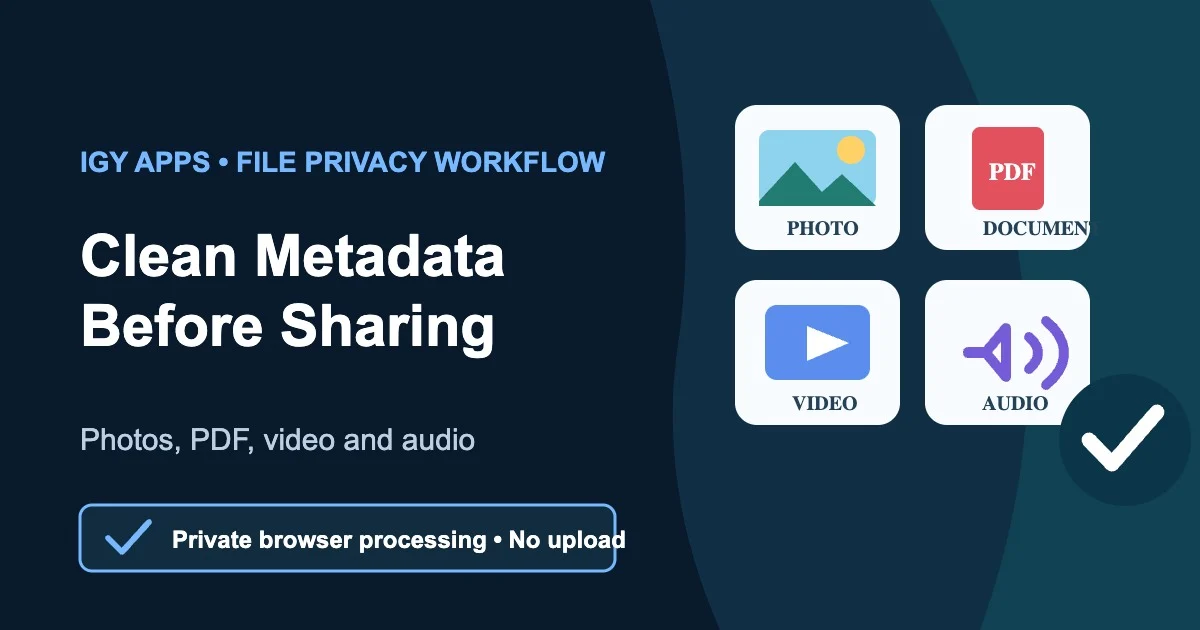
What file metadata is and why review it
Metadata is information stored with a file rather than shown as its main content. A photo can include camera and location details. A PDF can carry an author name and creation software. Audio and video containers may store title, artist, album, comments, cover art, encoder, or creation information.
Some metadata is useful for organizing a private library. Other fields are unnecessary when a file leaves your device. A sensible privacy workflow does not destroy the original; it creates a separate clean copy for email, public upload, client delivery, social media, or a shared archive.
The Metadata Remover inspects and removes supported metadata locally in your browser. Nothing is uploaded for processing, and the original files stay unchanged.
Quick answer
Choose up to 20 supported files, review the metadata groups detected in each one, select Quick clean or Advanced mode, then create and download clean copies. Open the results before sharing them.
The tool supports JPG/JPEG, PNG, WebP, PDF, MP4, M4V, MOV, WebM, MKV, MP3, WAV, OGG/OGA/Opus, FLAC, M4A, and AAC. It does not clean HEIC/HEIF or Word and Excel documents in this version.
What the cleaner removes by file type
Photos and images
For JPG, PNG, and WebP, supported removable groups include EXIF and GPS, XMP editing data, IPTC publishing fields, embedded comments, PNG text blocks, and PNG edit time. Image payloads are not re-encoded. A minimal orientation value is kept only when necessary for correct display.
For a focused photo workflow, read how to remove EXIF and GPS metadata from photos.
PDF documents
For PDF, the cleaner can remove document properties such as title, author, subject, keywords, creator, producer, and dates, plus embedded XMP when detected. Password-protected PDFs are rejected, and cleaning a digitally signed PDF invalidates the signature in the new copy.
The dedicated guide explains how to remove PDF metadata before sharing.
Audio and video
For supported media, the tool removes descriptive container tags such as title, artist, album, comments, cover art, encoder, and creation information. It remuxes the streams into a clean container without quality-changing re-encoding when every audio, video, and subtitle track can be preserved.
If the new container would lose a track, the operation stops instead of silently producing an incomplete file.
Quick clean versus Advanced mode
Quick clean selects every supported removable group detected in each file. It is the simplest choice when you want a sharing copy with fewer embedded details.
Advanced mode lets you keep or remove groups individually. This is useful when a working file needs selected publishing or descriptive information. The mode does not expose every proprietary field in every format; it controls the supported groups reported by the tool.
A practical privacy workflow before sharing
- Finish editing the content first.
- Keep an untouched original in a private location.
- Inspect the final files with Metadata Remover.
- Choose Quick clean or select groups in Advanced mode.
- Create and download the clean copies.
- Open every result and confirm that images, pages, audio, video, and subtitles still work.
- Rename files if their names reveal private information.
- Compress, encrypt, or package only after the clean copies pass review.
If you need one archive for several files, package the checked results with the ZIP Tool. Do not assume that placing a file inside ZIP removes its metadata; it only packages the file as it exists.
What cleaning does not do
Metadata removal does not hide visible faces, addresses, screens, spoken names, subtitles, or text shown inside the content. It does not anonymize the file name. It is also not a guarantee that every private proprietary field or steganographic payload has been removed.
Review the visible and audible content separately. For sensitive PDFs, inspect comments, attachments, forms, and redactions. For photos, look for location clues in the image. For audio and video, listen or watch for personal information.
Privacy, limits, and file size
Processing is client-side. The active session is cleared when the page is closed or reloaded. The tool accepts up to 20 files in one session, with an approximate combined limit of 100 MB on phones or low-memory devices and 250 MB on suitable computers.
Removing metadata does not always make a file smaller. PDF saving and media remuxing rebuild the container, so a clean copy can be slightly larger while keeping the content quality unchanged.
Verify before you send
Open the downloaded copies and check them in software the recipient is likely to use. The File Metadata Viewer can confirm basic type, size, date, dimensions, or duration, but verification should also include the actual content.
Keep the original until delivery is complete. A clean copy is a sharing copy, not automatically a replacement for your archive.
Frequently asked questions
Can one tool remove metadata from photos, PDF, video, and audio?
Yes, for the supported formats and metadata groups listed above. Different formats use different cleaning methods, so review the detected groups for each file.
Does metadata removal reduce media quality?
Supported image payloads are copied without re-encoding. Audio and video streams are remuxed without quality-changing re-encoding when every track can be retained.
Can I clean many files together?
Yes, up to 20 files within the memory limit shown for your device. Files are processed sequentially to reduce memory pressure.
Are the originals changed?
No. The tool creates new clean copies and leaves the originals untouched.