 English
 العربية
 Français
 Deutsch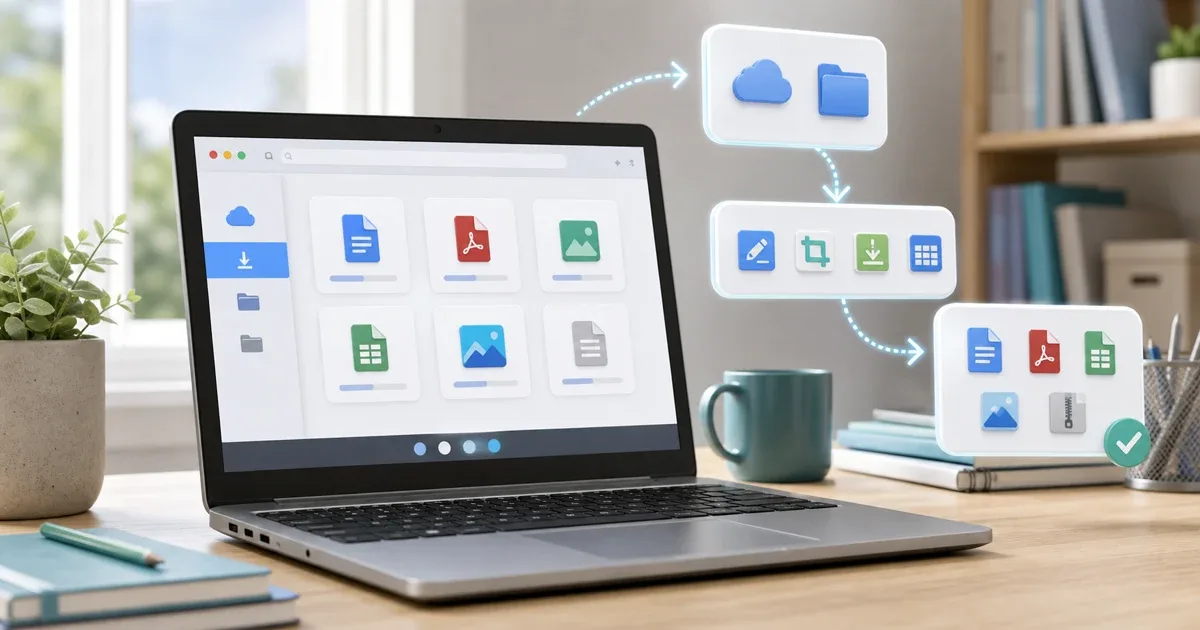
Why Chromebooks need a browser-first file workflow
Chromebooks are built around the browser. That is useful for school, travel, shared devices, and lightweight work, but it can feel limiting when someone sends you a Word document, PDF, image, spreadsheet, or file that must fit an upload limit.
You may not be allowed to install desktop software on a school-managed Chromebook. You may also want to avoid Android or Linux apps for a quick one-time task. In those moments, browser tools are often the fastest route: open the file, make the small change, download the result, and submit or share it.
The best starting point is the IGY Apps tools index, then choose the specific tool that matches the file problem.
Start with the Files app and Downloads folder
Before opening any tool, know where the file is. On a Chromebook, files often live in three places: Downloads, Google Drive, or a folder shared by your school or work account.
If the file came from email or a classroom portal, download a copy first. If it is in Google Drive, make sure you are working on the correct version. For assignments, forms, and certificates, keep the original file until the submitted version is accepted.
When a website asks you to choose a file, use the Chromebook file picker and select the copy from Downloads or Drive. After the tool creates a result, the new file usually appears in Downloads.
Check the file before editing it
A small file problem can waste a lot of time. The file may be too large, have the wrong extension, use a format the portal does not accept, or be an old copy.
Use File Size Checker when you need to confirm that a file is small enough for an email, school form, job application, or upload field.
Use File Metadata Viewer when you need to check file type, extension, size, image dimensions, modified date, or media details before sharing.
This is especially useful on Chromebooks because many downloaded files have similar names, such as download.pdf, image.png, or document (1).docx.
Edit common school and work files in the browser
For Word files, open DOCX Editor when you need a quick text correction, simple formatting review, or export from the browser. It is best for focused edits, not for complicated documents with heavy templates or tracked changes.
For PDFs, use PDF Editor when you need to highlight, add a note, draw a mark, insert a short text label, rotate pages, reorder pages, or save a reviewed copy.
For spreadsheets, use XLSX Editor when you need to inspect a workbook, correct a cell, or review a simple sheet without installing office software.
For images, use Image Compressor when a photo is too large to submit. If the image needs visible edits, start from Image Editor.
Keep the workflow small
A browser tool works best when the task is clear. Do not turn a Chromebook into a full desktop publishing setup if the real job is only to fix one page, reduce one image, or check one file.
A simple workflow looks like this:
- Download or locate the original file.
- Check size or metadata if needed.
- Open the matching browser tool.
- Make the smallest useful change.
- Download the result.
- Reopen the result once before submitting.
That final check matters. Make sure the file opens, the pages are in the right order, the name is clear, and the upload field accepts the file type.
Privacy notes for Chromebook users
Many IGY Apps tools listed here run in the browser for the core file task. That is useful on a Chromebook because the file can often stay on the device during the edit or check.
Still, be careful with managed devices and shared accounts. A browser-based tool does not automatically make a public computer private. Clear temporary downloads when appropriate, avoid working with highly sensitive documents on shared devices, and follow school or workplace rules for student records, forms, and client files.
Also remember that files stored in Google Drive may already be synced to your account. Browser privacy and cloud storage privacy are separate questions.
When you still need another app
Use a dedicated app or full desktop software when the document has macros, tracked changes, complex page layout, heavy spreadsheet formulas, OCR requirements, legal redaction, or long collaborative editing.
Browser tools are for quick wins. They are excellent when you need to finish a small task on a Chromebook without asking for installation permission.
Final checklist
Before you submit or share the final file:
- Confirm the file opens on the Chromebook.
- Check file size and type.
- Rename the file clearly.
- Keep the original until the task is accepted.
- Delete temporary copies from shared devices when needed.
For everyday Chromebook file tasks, start from IGY Apps tools, choose the smallest tool that solves the problem, and keep the workflow simple.